GEOANIMATOR JOURNAL
How to Add Routes to Your Map Animation
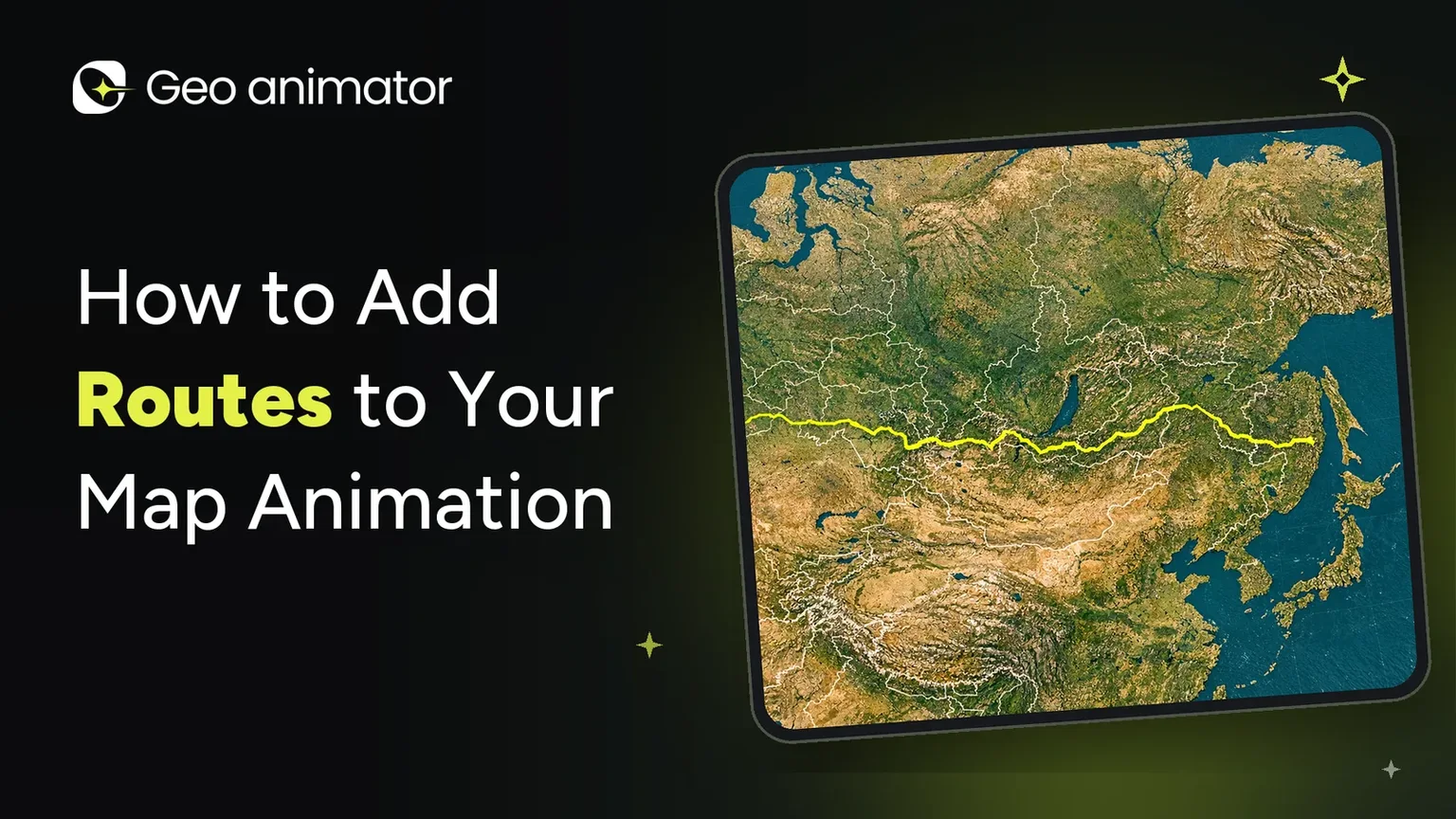
Learn how to add routes to your map animation on Android. Plot a travel path, time it with camera moves, and export a 9:16 map video with GeoAnimator.

In this article7 sections
Every good trip has a route. A road trip across the States, a backpacking loop through Southeast Asia, a trade route from a history lesson, a flight path you want your followers to see. Show it on a still map and it looks like a diagram. Show it moving and it becomes a story.
That is exactly why so many creators want to add routes to a map animation. The viewer watches the line travel from A to B, the camera follows, a label pops up at each stop, and suddenly a boring list of places feels like an adventure.
The good news is that you do not need a laptop, After Effects, or a week of free time. In this guide, we will walk through how to build an animated map route on your Android phone with GeoAnimator, from the first stop to the final export. Along the way you will pick up the planning tricks, timing habits and framing choices that make a route clip look polished instead of rushed.
What is a route animation on a map?
A route animation is a short clip where a path appears across a map over time. It can show a trip, a flight, a migration, a delivery line, a historical campaign or any journey between two or more places. Instead of one static line, the viewer sees the movement build up stop by stop.
People use route animations for:
Travel vlogs and trip recaps that show where you went and in what order
History and geography videos that explain explorers, empires and trade routes
Classroom lessons where students follow a journey on the map
Business and event content such as tour dates, shipping lanes or store rollouts
Short-form social clips that hook viewers with a moving map in the first two seconds
If you are completely new to animated maps, our Map Animation Maker guide explains the main tool types and what to look for before you start.
Plan your journey before you open the app
The clips that feel professional are nearly always planned in a sentence or two. Before touching the timeline, write your story down. For example:
"Start with the world, zoom into India, travel from Kochi to Dubai, then on to London, with a label at each stop."
That one sentence tells you almost everything you need: three locations, one route, one camera move and three text labels.
Here is a quick pre-flight checklist:
List your stops in order. Two to four stops work best for a short clip. More than that and the route gets crowded.
Decide the tone. Calm and documentary, or fast and energetic? This decides your camera moves later.
Choose your platform. YouTube needs 16:9, Reels and Shorts need 9:16, and a feed post often works best at 1:1.
Collect your extras. A few short facts, a flag, or a photo for each stop will make the route feel alive.
Planning like this saves a lot of editing time. It is also the same habit we recommend in Map Animations for Video: How to Make Them on Android.
Step-by-step: how to add a route to your map animation
Here is the full workflow.
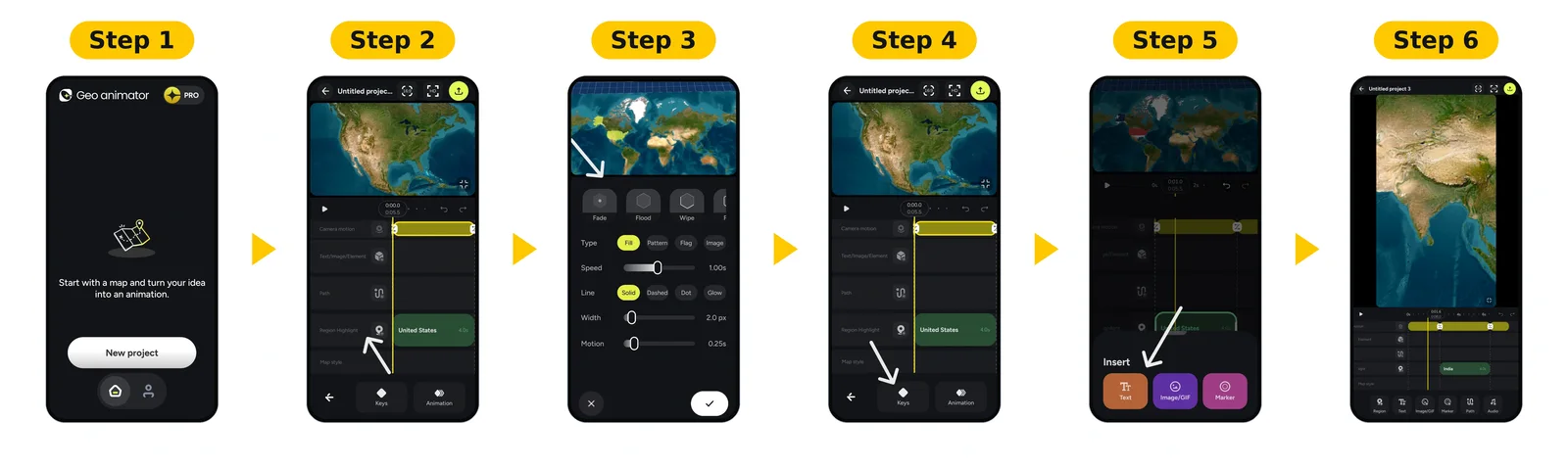
Install the app from Google Play and start a new project .
Search for your country or region and style its fill with a solid colour, pattern, flag or image.
Choose a reveal such as Fade, Flood, Wipe or Chase.
Add camera keyframes for zoom, pitch and rotation, and pick a transition like Orbit, Arc or Bounce.
Drop in text, labels or images, and arrange everything on the layered timeline.
Tap image in the bottom toolbar and add image
Tap the play button at the left of the timeline to preview your animation with the image
Make the camera follow the story
A route with a locked camera feels flat. The magic happens when the camera moves with the journey.
GeoAnimator gives you camera keyframes with control over pitch, zoom and rotation, plus three transition styles:
Orbit curves around the subject for a dramatic arrival
Arc travels in a smooth sweep, ideal for moving between two regions
Bounce settles with a small rebound, great for playful, fast-paced videos
After each move lands, you can set a hold. Push drifts slowly closer, Drift slides gently sideways and Orbit circles the scene. Holds keep the frame alive so it never feels frozen while your route finishes drawing.
A simple recipe that works for most travel clips:
Start wide so viewers see where the trip sits in the world.
Zoom toward your first stop with an Arc transition.
Follow the route with a slow Push or Drift hold.
Finish on the final destination with an Orbit for a satisfying ending.
We break the world-to-country move down further in Map Zoom Effect: How to Zoom From World to Country on Android.
Pick the right export format
When the clip feels right, export it as a video and follow the progress inside the app.
16:9 for YouTube and presentations
9:16 for Instagram Reels, TikTok and YouTube Shorts
1:1 for square feed posts
If you want the same journey on two platforms, build it once and export it twice, then check the framing of the second version. A route that fits neatly in 16:9 sometimes needs a tighter zoom to fill a tall 9:16 frame.
Also keep key labels away from the very top and bottom edges. Short-form apps cover those areas with captions and buttons.
About the watermark: the free version is perfect for learning the tools and testing ideas. Pro removes the watermark and unlocks all map styles, so it is worth considering for anything you post under your own brand.
Where route animations fit in a bigger video
A route clip is usually a 10 to 20 second segment inside a longer video. Introduce a destination, show the journey on the map, then cut back to your footage or narration. Export the clip, drop it into your editor, and layer your voiceover on top.
If you are comparing tools or wondering whether a desktop workflow is worth it, see Map Animation in After Effects, or Without It on Android and the AnimateMyMap alternative comparison. And if your story covers a single big country instead of a journey, the animated map of the United States tutorial is a good next read.
Ready to put your journey on the map?
Every trip deserves to be shown properly. Download GeoAnimator on Google Play, pick your first stop, add a route and watch your story move. For more ideas, browse the full GeoAnimator Journal.
Frequently asked questions
How do I add a route to a map animation?
In GeoAnimator, add a Travel / Path element to your project and connect your stops in order. Routes sit on their own timeline track, so you can adjust the timing independently, then add camera keyframes, labels and highlights around them before exporting.
Can I make a travel map animation on my phone?
Yes. GeoAnimator is an Android app, so you can search locations, add a travel path, move the camera, add text and export a finished video without a desktop editor.
What is the best aspect ratio for a route animation?
Use 16:9 for YouTube, 9:16 for Shorts, Reels and TikTok, and 1:1 for square posts. GeoAnimator exports all three, so you can build one story and publish it everywhere.
Is GeoAnimator free?
You can download it from Google Play and start building for free. Pro unlocks all map styles and removes the watermark. Check the app for current plans and pricing.