GEOANIMATOR JOURNAL
Animated Map of the United States: Make One on Android
Want an animated map of United States for a video? Here is how to highlight regions, zoom the camera and export a clip from your Android phone.

In this article10 sections
- 01Stock footage or your own animated map of the United States?
- 02What to plan before you open the app
- 03How to make an animated map of United States regions, step by step
- 04How do you highlight individual states or regions?
- 05Moving the camera across a country this wide
- 06A worked example: an election-week explainer
- 07Why a custom map beats a template for news and teaching
- 08Making the map readable on a phone
- 09Common mistakes with US map animations
- 10Frequently asked questions
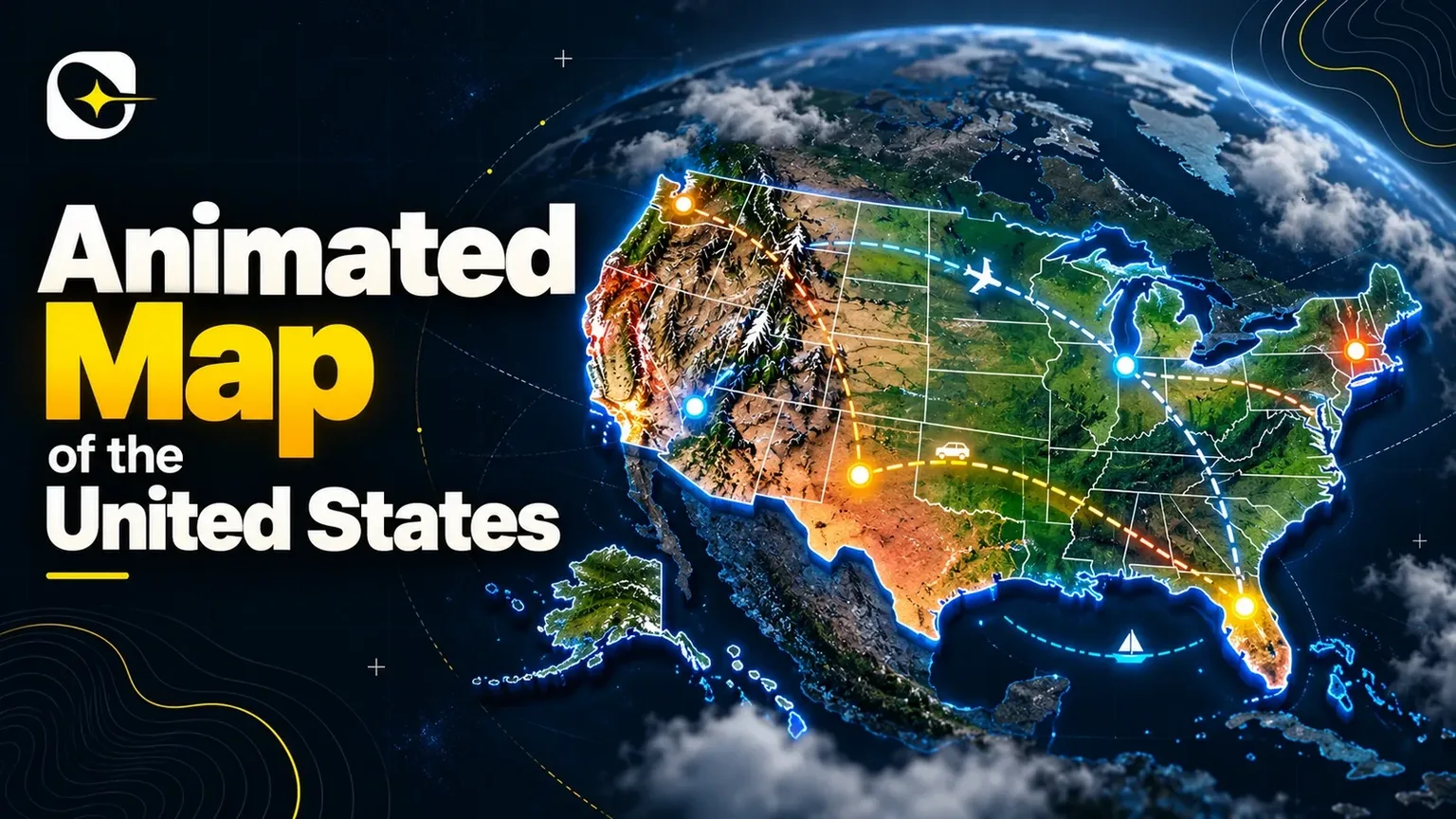
An animated map of United States geography is a short video in which the country, a region or a single state appears, changes colour or gets framed by a moving camera, so a viewer sees where something is as the narration says it. Search results for the phrase are mostly stock clips you download and drop in. If you need your own states, your own story and your own timing, you can build the animation on an Android phone in about twenty minutes.
Election season makes this useful right now, since the US midterms fall on November 3, 2026 and explainers about which states are in play tend to need a map that moves with the script. This guide covers what to decide before you open the app, a step-by-step build in GeoAnimator, and a few habits that make a US map read well on a small screen.
Stock footage or your own animated map of the United States?
Stock clips and custom maps solve different problems. A stock clip gives you a glowing generic country in seconds, but it cannot highlight Ohio and Michigan on cue or zoom to the state your script mentions. A custom map takes longer the first time and then fits your story exactly, which matters for news explainers, history lessons and any video where the location is the point.
If a plain looping background is enough, download a stock loop and move on. If the map has to say something specific, build it. Most of the effort is planning the order of what appears, and the app handles the motion.
What to plan before you open the app
Write the story as three or four beats on paper. A typical US explainer might open on the whole country, push toward one region, light up two or three places in sequence, then pull back out. Each beat becomes one camera position or one highlight on the timeline later.
Pick the output shape now, because it changes how tight you can frame the country. The contiguous United States is wide, so a 16:9 export shows it comfortably, while a 9:16 export for Reels, Shorts or TikTok leaves empty bands above and below unless the camera moves in on a region.
Choose the focus
Decide whether the video is about the whole country, a multi-state region or one state. Whole-country maps work best with a slow camera and one highlight at a time. Regional videos can use tighter framing and a text label per place.
How to make an animated map of United States regions, step by step
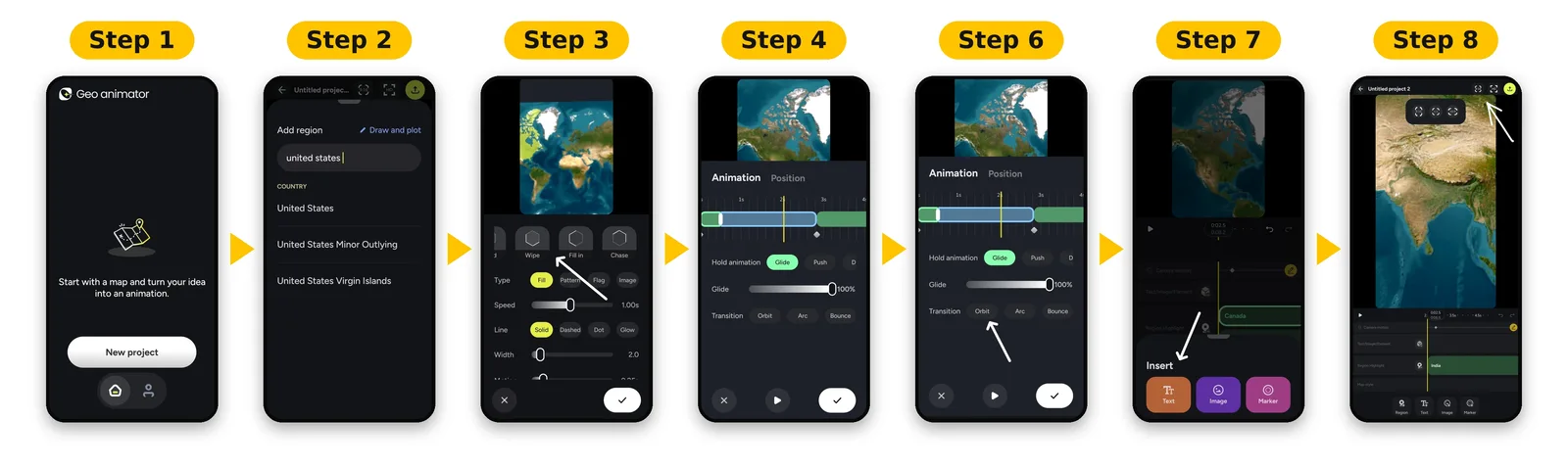
To make an animated US map in GeoAnimator, open the app on Android, search for the area you want to highlight, choose how it is revealed, add camera keyframes on the timeline, place any text, then export in the aspect ratio your platform needs. The full build below takes roughly twenty minutes the first time and less once you know the controls.
Install GeoAnimator from Google Play and start a new project.
Search for the United States and frame the whole country as your opening view.
Search for the first place you want to call out and highlight it.
Pick a reveal for that highlight: Fade for a calm entrance, Flood to fill the area, Wipe for a directional sweep or Chase for a moving edge.
Set the Rise height if you want the highlighted area to lift off the surface, and keep it modest so neighbouring places stay readable.
Add a camera keyframe on the timeline, then choose a hold such as Push, Drift or Orbit so the view keeps moving while the highlight sits on screen.
Choose the transition into the next keyframe: Orbit, Arc or Bounce. Arc is a safe default for travelling between two regions.
Repeat for each beat, adding text layers for labels and checking the order on the layered timeline.
Preview the whole clip, then export as 16:9, 9:16 or 1:1.
The free version leaves a watermark. Pro removes it and unlocks all map styles, which is worth knowing before you plan a branded or client video.
How do you highlight individual states or regions?
You highlight a state or region by searching for it by name inside GeoAnimator, selecting the result and giving it a reveal effect. Each highlight sits on its own layer, so you can stagger several places on the timeline and control when each one appears and how long it stays visible.
Staggering is what turns a static colour-in map into an animation. Start the second highlight a beat after the first reaches full colour, and the viewer follows the order of your sentence. For a deeper look at colouring areas, the walkthrough on animating a country highlight map uses the same reveal controls.
Less is more.
Keep the number of simultaneous highlights low. Two or three coloured areas at once read cleanly on a phone, and six start to look like a weather chart.
Moving the camera across a country this wide
The camera does most of the storytelling on a map this large. A slow Push toward a region tells the viewer to look there, and an Arc transition between two coastlines feels intentional rather than jumpy. Bounce works for light, playful topics and tends to feel wrong for serious news.
Zooming from the whole country into one place is its own technique, and the guide on zooming from world to country breaks down the keyframe timing. A good rule is to let each hold last slightly longer than the narration needs, so the picture is already steady when the viewer's eyes arrive.
Text and pins
Add text only where a label saves the narrator a sentence. State names, a date or a single number is plenty. Pins mark a city or a point of interest if your story needs one.
A worked example: an election-week explainer
Say you are making a 30-second video on three states that could decide a close race. Open on the full country for two seconds. Then push toward the first state, flood it with colour, and hold while the voiceover gives one fact about it.
Short beats win.
Move to the second state with an Arc transition, repeat the Flood reveal so the viewer learns the pattern, and add a short text label with the state name. Do the same for the third, then pull back to the full country with all three lit so the viewer sees how they relate. Export 9:16 for social and 16:9 if the clip also goes into a longer video. The whole structure is nine or ten keyframes, which is a manageable amount to adjust by hand when the script changes at the last minute, as election copy often does.
Everything here is a template, so swap the places and reuse the timeline for the next story.
Why a custom map beats a template for news and teaching
Teachers and news creators share a need that stock footage cannot meet: the map has to match a script that was written for this week. A history lesson on westward expansion needs the right regions in the right order, and a weather or disaster explainer needs the affected area, not a lookalike.
A custom animation also stays editable. When a fact changes, you adjust one highlight or one keyframe and re-export, rather than hunting for another clip that happens to fit. If you later move from the US to another country or a world view, the same timeline logic applies, and the animated map creator guide shows how to build that kind of reusable project.
Making the map readable on a phone
Most people will watch on a screen under seven inches, so small details vanish. Use large text and fewer layers than you think you need, and let one idea own the screen at a time.
Check the vertical export early. The United States is much wider than it is tall, so a 9:16 clip works best when the camera spends most of its time on a region instead of the whole country. If you want one source for several platforms, export 16:9 for YouTube and a separate 9:16 pass with tighter keyframes.
For a broader view of picking a tool and finishing a clip, choosing a map animation maker compares what matters when you are starting out, and the GeoAnimator homepage lists the full feature set.
Common mistakes with US map animations
Over-animating is the most common problem. A map that spins, bounces and flashes in every beat distracts from the story. Choose one reveal style and one transition style for the whole video, and vary only the target. Viewers learn the pattern after the first beat, and repeating it lets them concentrate on the places instead of the effects.
Slow down.
The second is pacing the camera to the music instead of the narration. Record or write the voiceover first, then match keyframes to it.
Finally, check every place name against a reliable source before export. Boundaries and spellings are easy to get wrong when you are moving quickly, and a map error is the first thing commenters notice.
Frequently asked questions
Can I make an animated map of the United States on my phone?
Yes. GeoAnimator runs on Android, and you can build a US map animation entirely on the phone: search for the places to highlight, set reveal effects, add camera keyframes on the timeline and export a finished video. No desktop software or editing skills are required for a basic clip.
It is Android only.
How long does an animated US map take to make?
A simple clip with three or four beats takes around twenty minutes the first time you make one. Most of that goes on planning the order of highlights and camera moves rather than tapping controls, and repeat projects with the same structure go much faster.
Which export size should I use for a US map video?
GeoAnimator exports 16:9, 9:16 and 1:1. Use 16:9 for YouTube and presentations, 9:16 for Reels, Shorts and TikTok, and 1:1 for feed posts. The country is wide, so 16:9 shows it most completely, while vertical clips benefit from tighter regional framing.
Preview each version before you commit, since the same keyframes can crop differently. If a vertical export cuts off the coasts, tighten the camera and let the story sit on one region at a time rather than forcing the whole country into a narrow frame.
Is GeoAnimator free for map animations?
You can start for free, and exports carry a watermark. Pro removes the watermark and unlocks all map styles. Current pricing is shown in Google Play, so check there rather than relying on a number written in an article.
Where do I find a ready-made animated US map?
Stock video libraries offer generic looping US maps you can download and place behind your content. They are quick but fixed, so they cannot highlight the specific states in your script. Build your own when the location is part of the message.
Jaseel S is the CEO and founder of Lascade, the app studio behind GeoAnimator, the Android app for turning maps into animated videos. He leads a team of over 40 engineers, designers and creatives building consumer mobile apps that turn screen time into meaningful experiences. Under his leadership, Lascade has shipped more than 10 apps across travel, productivity, education and lifestyle, including GeoAnimator and SmartRuler. Each one starts from the same question: what would make a phone genuinely useful for something people already want to do? GeoAnimator came from one of those questions. Map videos are everywhere on YouTube, Shorts and in classrooms, yet making one has usually meant desktop editing software, plug-ins and hours of manual keyframing. At Lascade, Jaseel sets the direction for an editor that puts the whole job on a phone: search for a country, give it a fill colour, flag or pattern, reveal it with a fade or wipe, move the camera from the whole globe down to a single region, and export a clip in 9:16, 16:9 or 1:1, ready to post from the same device. In the GeoAnimator journal, Jaseel writes practical, step-by-step guides to map animation. They cover how to choose a map animation maker for the job in front of you, how to build a smooth zoom from world to country with camera keyframes, how to style a country highlight that reads clearly at a glance, and how GeoAnimator compares with tools like AnimateMyMap. Each guide is built around a real clip made in the app, so the steps, settings and timings match what readers will see on their own screens. His writing is aimed at the people who make these videos every week: teachers explaining history and geography, YouTube channels telling stories about places, news explainers showing where something happened, and travellers who want to share where they have been. The goal is the same in every post: help readers get from an idea to a finished, shareable map video in minutes, not hours.