GEOANIMATOR JOURNAL
Map Zoom Effect: How to Zoom From World to Country on Android
Learn how to make a map zoom effect on Android: start on the world, push into one country with camera keyframes, and export a 9:16 video.

In this article9 sections
- 01What is a map zoom effect?
- 02How do you make a map zoom effect on Android?
- 03Which camera transition looks best for a zoom?
- 04How long should a map zoom last?
- 05Which aspect ratio should you export?
- 06Tips that make the zoom look professional
- 07What can go wrong, and how do you fix it?
- 08Is a map zoom effect worth using in your videos?
- 09Frequently asked questions
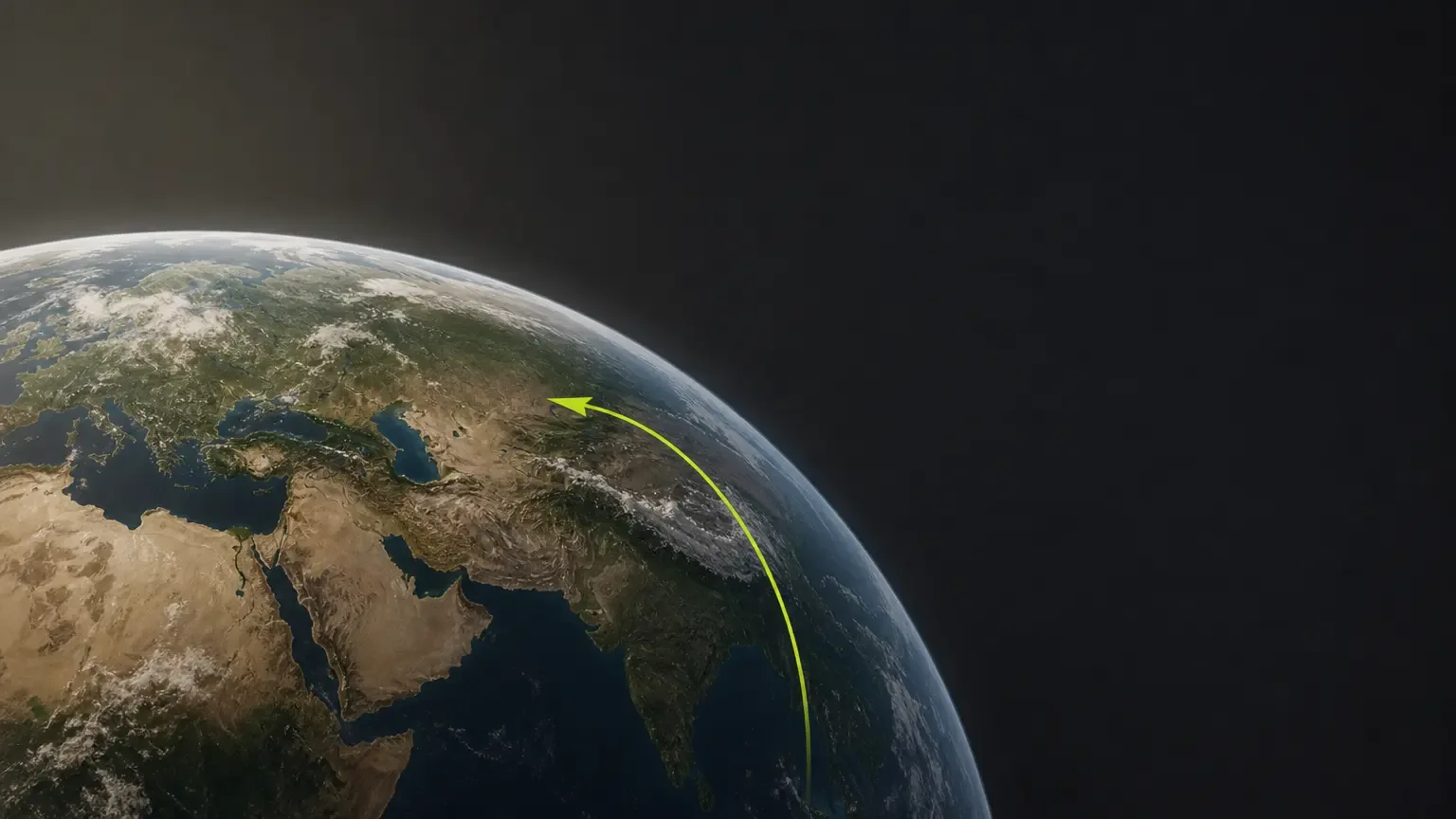
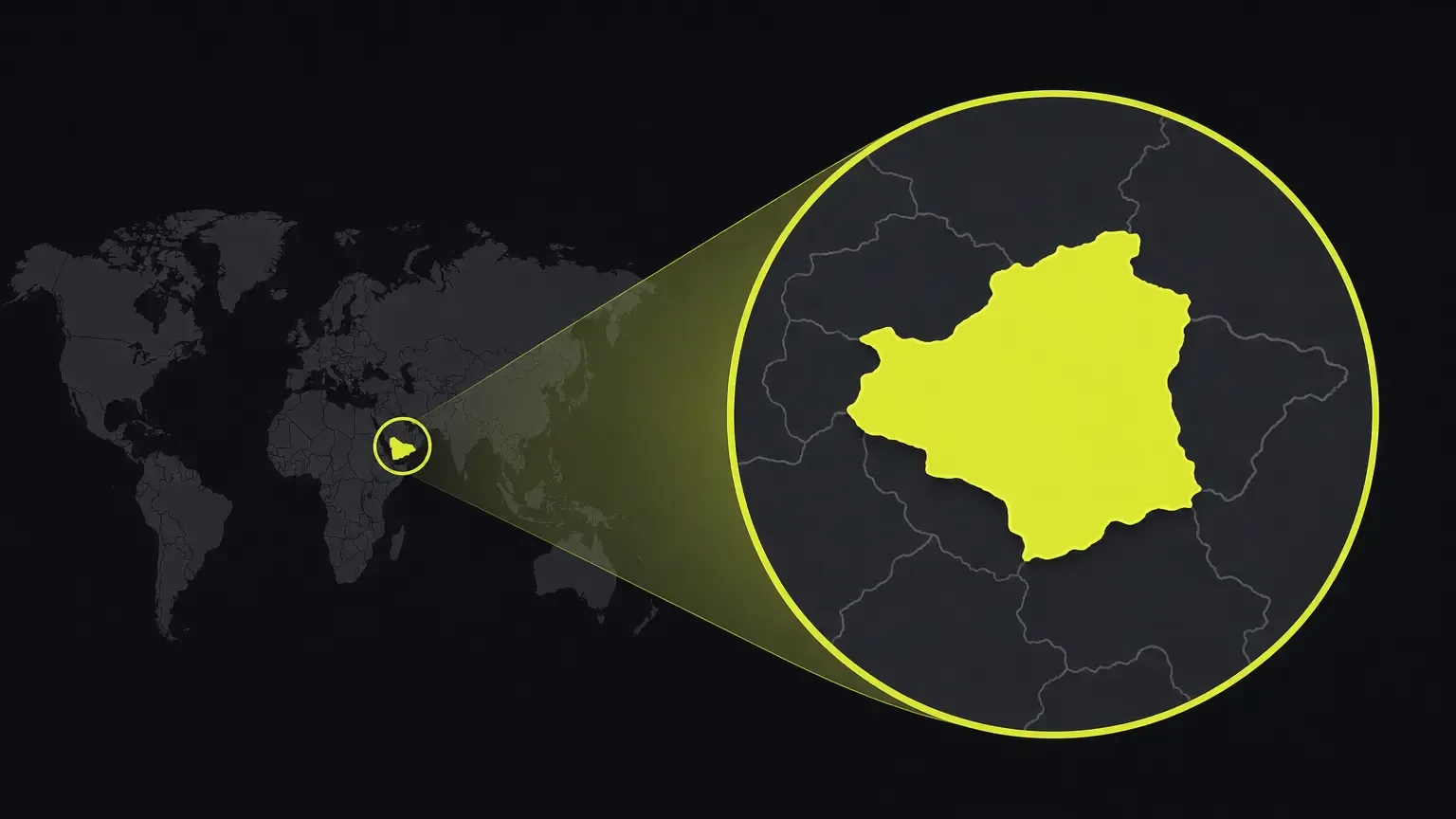
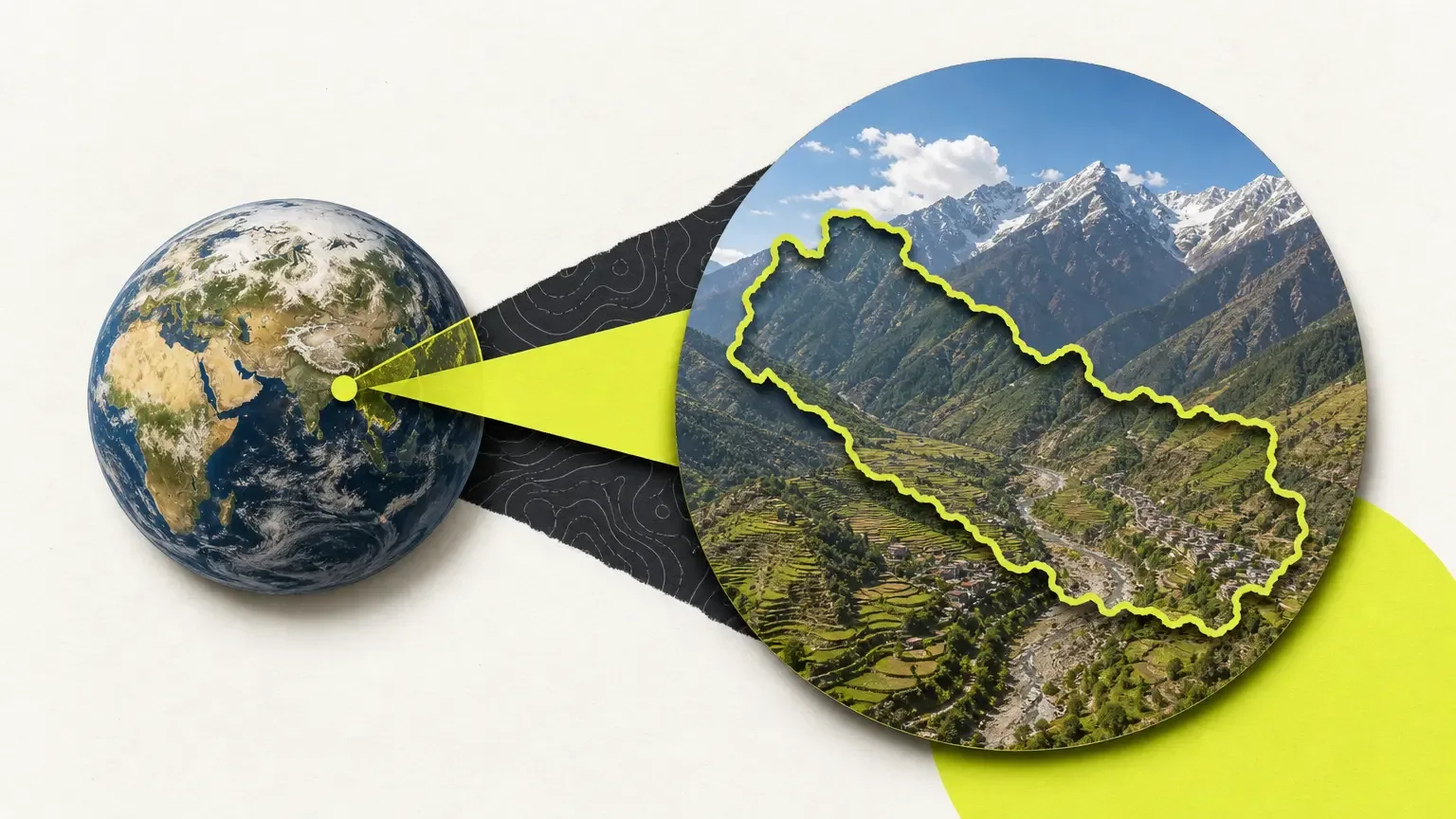
A map zoom effect is the shot where a video starts on a whole globe or world map and glides in until a single country, region or city fills the frame. Search "where is Nepal on the world map" and you will see why creators like it: it answers the question in two seconds without a single caption.
You do not need desktop editing software to build one. This guide walks through the shot on Android with GeoAnimator, using camera keyframes, and covers what makes a zoom look smooth instead of jumpy. If you have never animated a map before, the basic map animation guide is a good ten-minute warm-up.
What is a map zoom effect?
A map zoom effect is a camera move on a map video that starts wide, usually on a world view, and pushes in toward one place so the viewer sees where it sits in context. It works as an establishing shot for news explainers, history videos, geography lessons and travel intros, and it replaces a long spoken description of a location.
Two things separate a good one from a bad one. Pacing is the first, because the camera should ease in rather than move at constant speed. The second is a clear end frame with the destination highlighted.
Many tutorials for this phrase scale a screenshot up in a video editor, which gets blurry at the closest level. Camera keyframes on a real map avoid that.
How do you make a map zoom effect on Android?
To make a map zoom effect in GeoAnimator, search for your country, highlight it, set a wide camera keyframe at the start, add a second keyframe zoomed in on that country, choose how the camera travels between them, then export. The whole shot takes a few minutes and needs no video editor.
Here is the sequence, using Nepal as the worked example because it is the sort of place people look up on a world map and then want to see in context.
Open GeoAnimator and start a new project. Pick a map style; the free tier covers the basics, and Pro unlocks every style.
Search for Nepal and highlight it as a country. Choose a fill color that contrasts with the base map, since this is the color the zoom ends on.
Pick a reveal effect for the highlight. Flood spreads the color outward from the country, which suits a zoom that is about to land there. Fade works if you want it quieter.
On the timeline, set the first camera keyframe zoomed out far enough to show most of the world.
Add a second keyframe and frame Nepal tightly, leaving a little margin so the borders are not clipped.
Choose the transition between the two keyframes (options below), then play the preview and adjust the timing.
Add a text label if you want one, then export in the aspect ratio your platform needs.
Which camera transition looks best for a zoom?
For a straight zoom from world to country, Arc and Orbit transitions usually look best because they curve the camera path instead of pulling it in a straight line. Bounce adds a small overshoot that suits playful content. GeoAnimator offers all three between keyframes, so you can try each on the same shot and keep whichever fits.
Arc
Arc sweeps the camera along a curved path, a safe default for news and history explainers.
Orbit
Orbit rotates around the subject while moving in. It is more dramatic than Arc and works well when the destination is a landmass the viewer might not recognize from the front.
Bounce
Bounce lands with a slight spring. It suits short social clips and kids' geography content, and it is a poor fit for a serious documentary tone.
Holds matter.
At the end of the move you can add a Push, Drift or Orbit hold so the camera keeps moving gently while the viewer reads your label, instead of freezing on a still frame. A frozen end frame is the quickest way to make an animation look like a slideshow.
How long should a map zoom last?
For a world-to-country zoom, three to five seconds is a good range. Under two seconds the viewer loses track of where the camera went, and over six it starts to drag unless there is narration or music carrying it. Zooming across larger gaps, such as world to a single city, can justify the longer end of that range.
The further the camera travels, the more the viewer has to process. For two stages, say world to continent and then continent to country, make two short shots with a brief hold between them.
Preview at full screen on a phone before you export.
Trim the hold at the end if the label is already readable.
Which aspect ratio should you export?
Export 9:16 for TikTok, Instagram Reels and YouTube Shorts, 16:9 for standard YouTube videos, and 1:1 for square feed posts. GeoAnimator exports all three, so you can build the zoom once and render it again in each shape without redoing the camera work.
Framing changes with the ratio. A tall 9:16 frame crops the sides, so a wide country like Russia or Canada may need a looser final keyframe than in 16:9. Check the last frame of every export.
One practical note. The free version leaves a watermark on exports, and Pro removes it. If the clip is going into a client video or a channel you care about, plan for Pro.
Tips that make the zoom look professional
Keep the starting view honest. If the first frame is already close to the destination, the effect collapses into a cut, so start wide enough that the country is small or invisible.
Highlight the destination before the camera arrives. When the fill spreads just ahead of the camera, the eye follows it in.
Add a pin or a short text label once the camera settles. Keep it to a few words.
One strong move per scene is plenty. If your story covers several places, give each its own short shot with the same transition.
What can go wrong, and how do you fix it?
The most common problem is a zoom that feels jerky. It usually means the two keyframes are too far apart for the time you gave them, so lengthen the gap or soften the transition. A second cause is a flat, constant-speed move; switch to Arc or Orbit and the easing will usually fix it.
Another frequent issue is a final frame that cuts off the country. Pull the second keyframe back slightly, and for archipelagos frame the whole group.
Low contrast is the third trap.
If the highlight color blends into the map, choose a different fill, especially for small phone screens.
Is a map zoom effect worth using in your videos?
Yes, when location is part of the story, because a zoom tells viewers where something happened faster than any sentence and gives a video a clear opening move. It is decoration when the content has no geographic point.
GeoAnimator is built for exactly this shot on Android: highlight a country, set camera keyframes, choose the transition and export for the platform you are posting to. You can get it on Google Play and have a first zoom rendered in a few minutes. If you later want to follow a route across the map instead, the travel map animation guide covers that.
Frequently asked questions
What is a map zoom effect?
A map zoom effect is a camera move that starts on a wide map view, such as the whole world, and pushes in until one country, region or city fills the frame. It shows viewers where a place is in context. Videos use it as an opening shot for news, geography and history content.
On Android you can build one in GeoAnimator with two camera keyframes and a transition between them, then export it in 9:16, 16:9 or 1:1 without touching a separate video editor.
Can you make a map zoom effect without a video editor?
Yes. In GeoAnimator you set a wide camera keyframe, add a second one zoomed on your target, and pick a transition such as Arc or Orbit between them. Then you export the clip directly from the app, with no separate timeline editor involved. The app runs on Android only.
How do you zoom into a country on a map animation?
Search for and highlight the country, set a wide starting keyframe, then add a second keyframe framed tightly on the country. Choose Arc, Orbit or Bounce for the move between them and preview it before exporting. Leave a small margin around the borders so nothing is clipped.
How long should a map zoom animation be?
Three to five seconds suits a world-to-country zoom. It is long enough for viewers to follow the camera and short enough to keep a video moving. Very long jumps can run a little longer.
What aspect ratio should I use for a zoom video?
Use 9:16 for TikTok, Reels and YouTube Shorts, 16:9 for standard YouTube videos and 1:1 for square feed posts. GeoAnimator exports all three from the same project, so you build the camera move once. Check the final frame after changing ratio, because tall frames crop the sides of wide countries.
Is GeoAnimator free?
Yes, GeoAnimator has a free tier you can use to build and preview a zoom. Pro removes the watermark from exports and unlocks all map styles, and current pricing is shown on the Google Play listing rather than quoted here.
Jaseel S is the CEO and founder of Lascade, the app studio behind SmartRuler. He leads a team of over 40 engineers, designers, and creatives dedicated to building consumer mobile applications that turn screen time into meaningful experiences. Under his leadership, Lascade has shipped more than 10 apps across travel, productivity, education, and lifestyle categories.