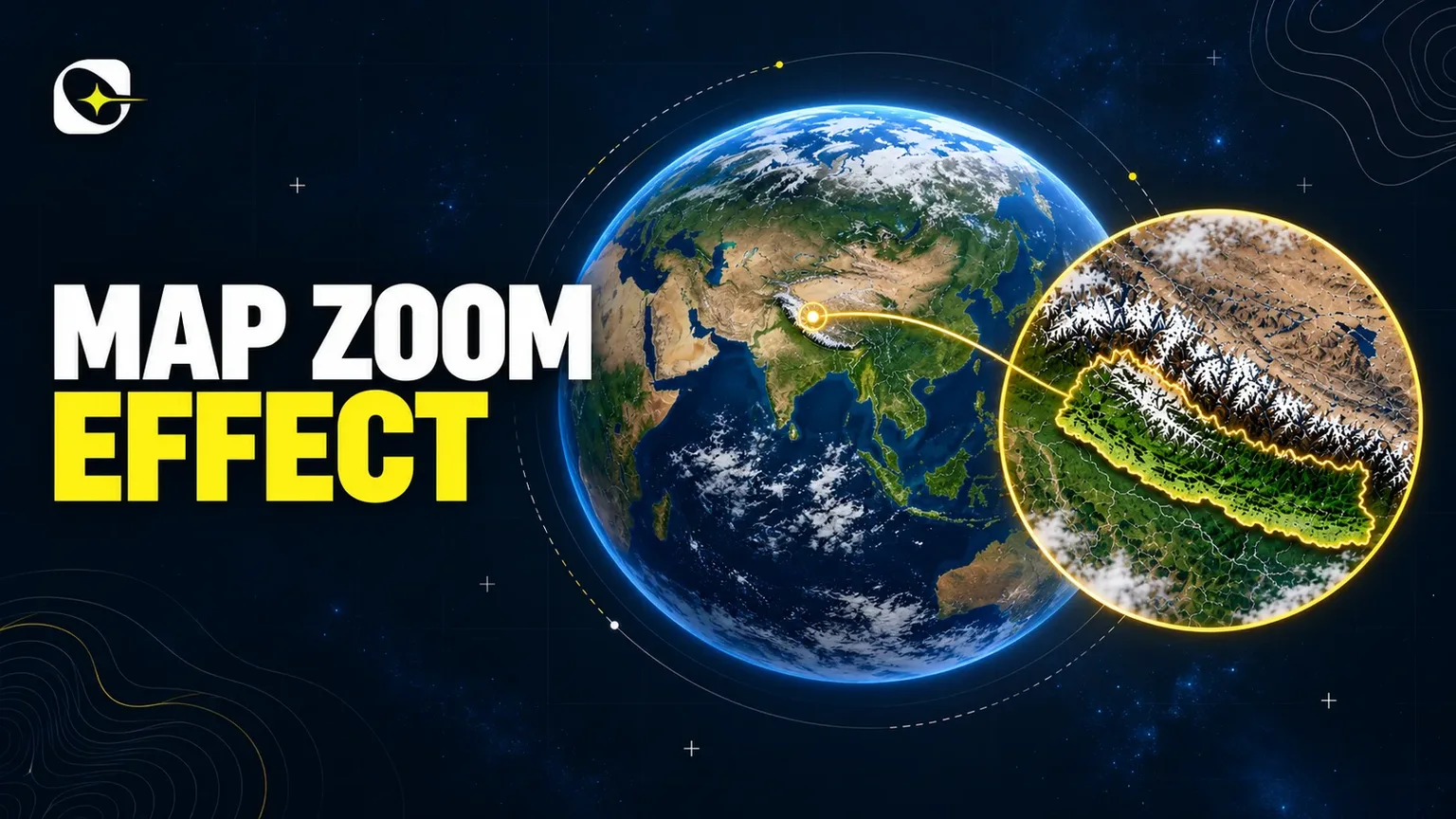
GEOANIMATOR JOURNAL
Map Animations for Video: How to Make Them on Android
Make map animations for video on your Android phone: highlight countries, add camera moves, then export 16:9, 9:16 or 1:1 with GeoAnimator.

In this article9 sections
- 01What are map animations for video?
- 02How to animate a map for a video?
- 03Plan the shot before you open the app
- 04Which reveal and camera move should you use?
- 05How can I create free map animations?
- 06Pick the right export format
- 07Common mistakes that make map videos look amateur
- 08Where this fits in a bigger video
- 09Frequently asked questions
Maps are the fastest way to show a viewer where something happened. Searches like "where is Nepal on the world map" keep climbing, and each one is a person who would rather see a short clip than read a paragraph. Map animations for video give you that clip: a country lights up, the camera glides in, a label appears, and the story makes sense in five seconds.
This guide walks through building one on an Android phone with GeoAnimator, from picking the area to exporting for YouTube, Shorts or Reels. We use Nepal as the worked example, because it is the kind of place viewers look up the moment it appears in the news. New to the app? The How it works section on the homepage shows the three-step flow first.
What are map animations for video?
Map animations for video are short clips where parts of a map change over time: a country fills with color, a border draws in, the camera zooms from the whole world to one region, and text appears alongside. They replace a static screenshot with motion that tells the viewer what to look at and in what order.
Creators use them as intros for geography and history channels, as explainers inside news videos, and as vertical clips for short-form feeds. The animation does the pointing, so you do not have to say "look at the top left".
How to animate a map for a video?
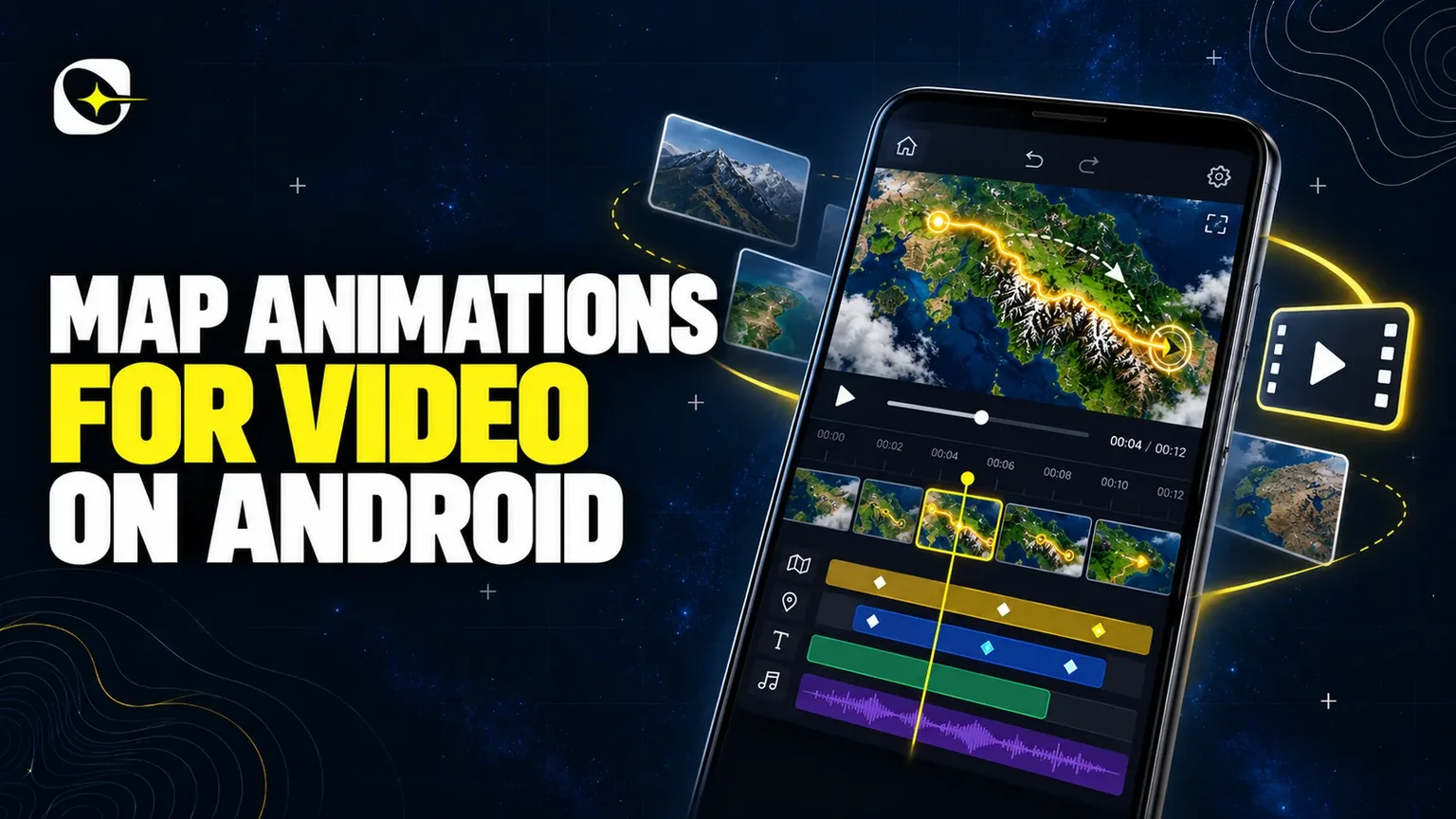
To animate a map for a video, choose a map style, highlight the places you want, set how each one appears, add camera keyframes so the view moves, place any text, then export in the aspect ratio your platform needs. In GeoAnimator, all of this happens on one layered timeline on your Android phone.
Nine steps, with Nepal as the subject.
Install GeoAnimator from Google Play and start a new project.
Search for Nepal and select it, so the country becomes a highlight layer on the timeline.
Pick the highlight color and set the Rise height if you want the country to lift off the map in 3D.
Choose a reveal. Fade is subtle, Wipe sweeps across, Chase follows the outline, and Flood fills the shape outward. Flood suits a single country well.
Open the camera and set a first keyframe zoomed out to the whole world.
Add a second keyframe zoomed in on Nepal, and pick a transition between them: Orbit, Arc or Bounce.
Add a hold on the last keyframe. Push, Drift and Orbit holds keep the camera slowly moving so the frame never feels frozen.
Add a text layer with the country name or a short fact, and drag it along the timeline so it lands just after the reveal.
Preview the whole clip, trim anything that drags, then export.
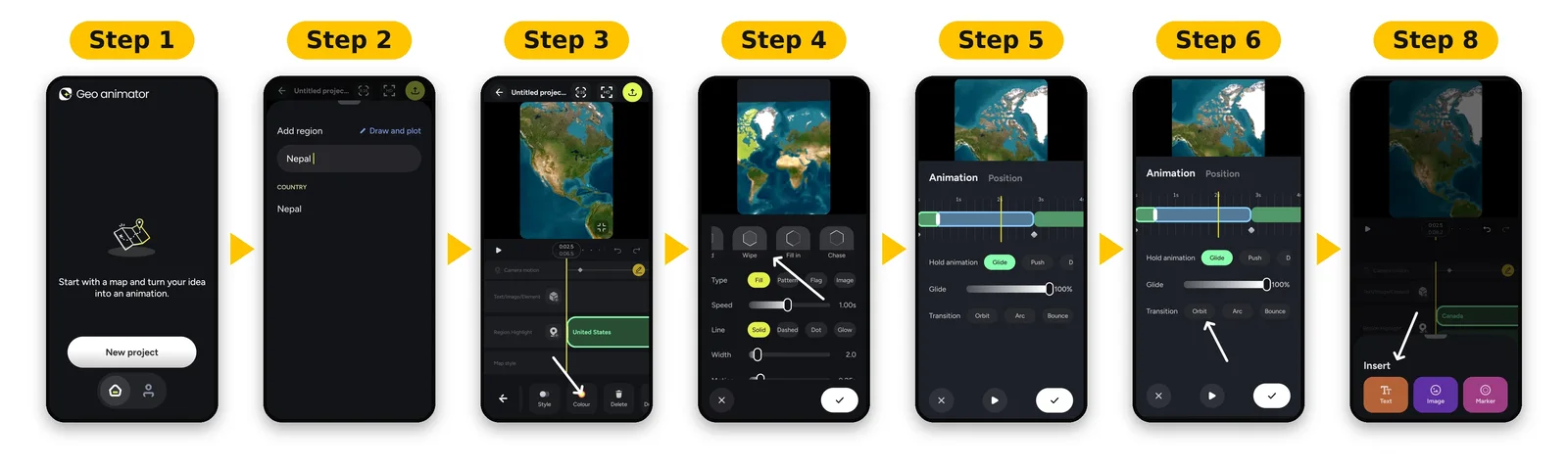
If you want a longer walkthrough with screenshots of each control, the GeoAnimator map animation guide covers the same ground in more detail.
Plan the shot before you open the app
The clips that look professional are almost always planned in one sentence. Write it before you touch the timeline: "The world, then Nepal fills in, then a label saying it sits between India and China." That sentence gives you two camera keyframes, one highlight and one text layer. Anything beyond that should earn its place.
Keep the first beat short. A viewer deciding whether to keep watching gives a map about two seconds to show them something. Start already moving, or start with the highlight, not with a still map and a pause.
Short beats long.
Choose one subject per clip
A single country or region per clip reads clearly. If your video covers several places, make several short clips and cut between them in your video editor. Stacking six highlights into one animation usually makes none of them memorable. For a larger subject, such as an animated map of the United States, the same one-clip-per-idea rule applies.
Match the pace to your narration
If you are recording a voiceover, read your script aloud once with a stopwatch. Then set the reveal and camera moves to land on the words they illustrate. Matching motion to speech is the difference between a map that supports you and one that distracts from you.
Which reveal and camera move should you use?
For a single country, a Flood reveal with a zoom-in camera move is the safest default. Flood fills the shape outward so the viewer sees its extent, and the zoom carries them from context to detail. Use Wipe for borders that run in one direction, and Chase when you want the outline itself to draw.
Camera moves deserve more thought than reveals, because they set the mood of the whole clip. Here is how the options in GeoAnimator behave in practice. You can see all of them listed under Features on the homepage.
| Control | What it does | Good for |
|---|---|---|
| Fade reveal | Highlight fades in softly | Quiet, documentary tone |
| Flood reveal | Fill spreads outward across the shape | Showing the size of a country |
| Wipe reveal | Highlight sweeps across the area | Regions with a clear direction |
| Chase reveal | Outline traces around the border | Emphasizing a boundary |
| Orbit transition | Camera curves around the subject | Dramatic arrival at one place |
| Arc transition | Camera travels in a smooth arc | Moving between two regions |
| Bounce transition | Camera settles with a small rebound | Playful or fast-paced videos |
Holds are what you set after a camera move lands. Push moves slowly closer, Drift moves slowly sideways, and Orbit circles gently, which keeps a long narration from sitting on a frozen frame.
How can I create free map animations?
You can start making map animations for free by downloading GeoAnimator from Google Play and building your first clip in the editor. Pro removes the watermark and unlocks all map styles, so the free version is best treated as a way to learn the tools and test an idea before you commit. If you are still weighing up tools, the guide to picking a map animation maker compares the main types, and the AnimateMyMap alternative post compares GeoAnimator with that tool directly.
Whatever tool you use, check what a free export includes before you plan a release. A watermark can be fine for a draft or a test, and not fine for a video you are posting under your own brand. Decide that early, so you are not re-making a clip at the end.
Pick the right export format
GeoAnimator exports in 16:9, 9:16 and 1:1. Choose 16:9 for YouTube and most embedded video, 9:16 for Shorts, Reels and TikTok, and 1:1 for square feed posts. Set the format before you place text, because a 9:16 frame crops very differently from 16:9 and can push your labels out of view.
If you need the same story on two platforms, build it once and export it twice, then check the second version's framing in the preview. A country that sits centered in 16:9 sometimes needs a slightly tighter zoom in 9:16 to fill the taller frame.
Check text safe zones
Short-form apps cover the bottom of the screen with captions and buttons. Keep key labels in the middle of the frame, away from the very top and bottom, so nothing important is hidden by the platform interface.
Common mistakes that make map videos look amateur
Most weak map clips fail for the same few reasons. The camera moves too fast to follow, the labels are too small to read on a phone, and too many places are highlighted at once. Fixing those three things improves a clip more than any new effect.
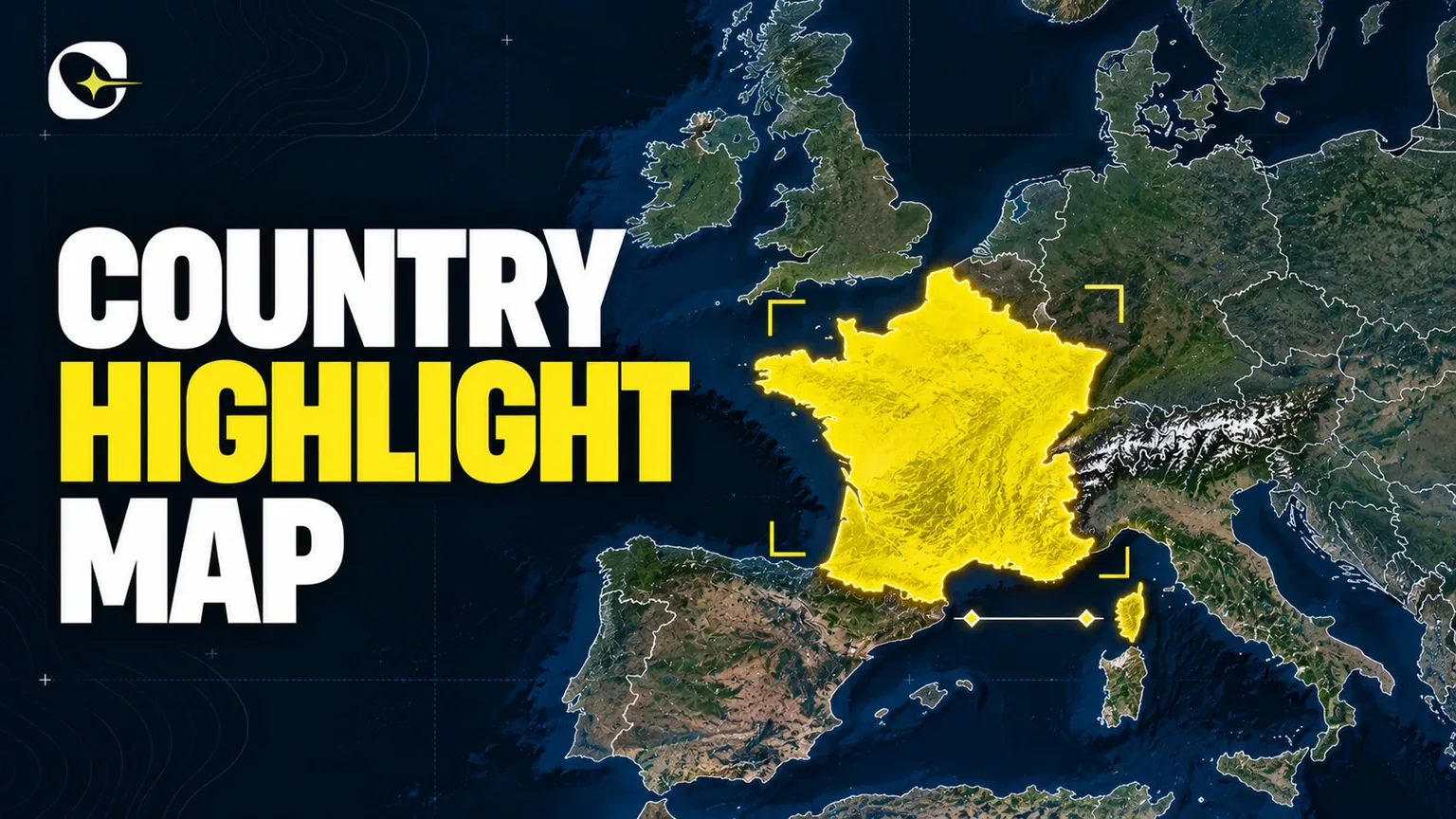
Another frequent one is starting too zoomed in. If the viewer cannot tell where the place sits in the world, the detail you zoom to means little. Begin wide, then move in, even if only for a second. Our country highlight map tutorial builds a clip in exactly that order.
Finally, test it on a phone. Watch the clip before you export, because text that looks fine on a desk can be unreadable at arm's length.
Small text is the usual casualty.
Where this fits in a bigger video
A map animation rarely stands alone. It usually sits inside a longer video as a ten to twenty second segment: you introduce a place, the map shows where it is, and you move on. Export the clip, drop it into your video editor, and lay your narration or music over it.
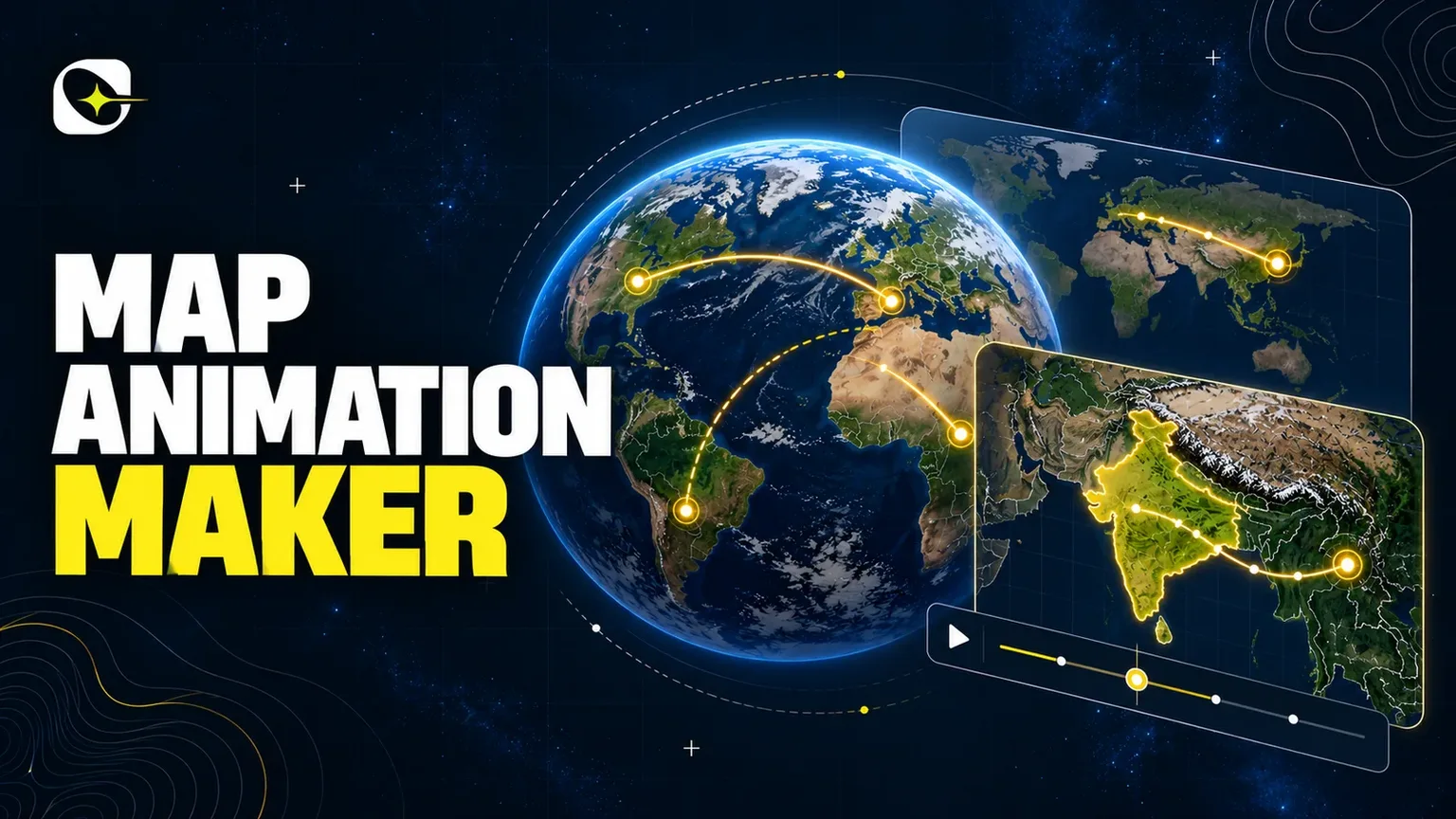
For clips about journeys between places, a different workflow suits you better. Our travel map animation guide covers routes and paths specifically, while this guide stays with countries, regions and camera moves.
That is the whole workflow.
Frequently asked questions
How to animate a map for a video?
Choose a map style, highlight the places you want, pick a reveal such as Flood or Wipe, add camera keyframes so the view moves, place your text, and export in 16:9, 9:16 or 1:1. In GeoAnimator you do all of this on an Android phone, on one timeline, without a desktop editor.
Start with two camera keyframes and one highlight. You can always add more once the basic shot works.
How can I create free map animations?
Download GeoAnimator from Google Play and build your clip in the editor to try the tools without paying. Pro removes the watermark and unlocks all map styles, so the free version suits practice and drafts, while a clip you post under your own brand may call for Pro.
Can I animate a video for free?
Yes, you can build and preview a map animation without paying, then bring the exported clip into any video editor you already use. The thing to check is what the free export includes. In GeoAnimator, Pro is what removes the watermark, so decide whether a watermarked clip is acceptable for where you plan to post it.
If it is for a test or a rough cut, the free route is enough.
What aspect ratio should a map animation be?
Use 16:9 for YouTube and embedded video, 9:16 for Shorts, Reels and TikTok, and 1:1 for square posts. GeoAnimator exports all three, so you can build one story and export it for each platform.
Does GeoAnimator work on iPhone?
No. GeoAnimator is an Android app, available on Google Play. The editor is the app itself, and the website is a landing page, so there is no browser version for building clips.
Jaseel S is the CEO and founder of Lascade, the app studio behind GeoAnimator, the Android app for turning maps into animated videos. He leads a team of over 40 engineers, designers and creatives building consumer mobile apps that turn screen time into meaningful experiences. Under his leadership, Lascade has shipped more than 10 apps across travel, productivity, education and lifestyle, including GeoAnimator and SmartRuler. Each one starts from the same question: what would make a phone genuinely useful for something people already want to do? GeoAnimator came from one of those questions. Map videos are everywhere on YouTube, Shorts and in classrooms, yet making one has usually meant desktop editing software, plug-ins and hours of manual keyframing. At Lascade, Jaseel sets the direction for an editor that puts the whole job on a phone: search for a country, give it a fill colour, flag or pattern, reveal it with a fade or wipe, move the camera from the whole globe down to a single region, and export a clip in 9:16, 16:9 or 1:1, ready to post from the same device. In the GeoAnimator journal, Jaseel writes practical, step-by-step guides to map animation. They cover how to choose a map animation maker for the job in front of you, how to build a smooth zoom from world to country with camera keyframes, how to style a country highlight that reads clearly at a glance, and how GeoAnimator compares with tools like AnimateMyMap. Each guide is built around a real clip made in the app, so the steps, settings and timings match what readers will see on their own screens. His writing is aimed at the people who make these videos every week: teachers explaining history and geography, YouTube channels telling stories about places, news explainers showing where something happened, and travellers who want to share where they have been. The goal is the same in every post: help readers get from an idea to a finished, shareable map video in minutes, not hours.