GEOANIMATOR JOURNAL
Map Animation Maker: How to Pick One and Make a Clip
Compare map animation maker types, then follow real steps to highlight a country, move the camera and export a video on Android.

In this article9 sections
- 01What is a map animation maker?
- 02How do you choose a map animation maker?
- 03Which type of map animation maker fits which job?
- 04How do you make a map animation on Android with GeoAnimator?
- 05Worked example: animating the Equal Earth map story
- 06What makes a map animation actually good?
- 07What mistakes ruin a map animation?
- 08Is a phone really enough for this?
- 09Frequently asked questions
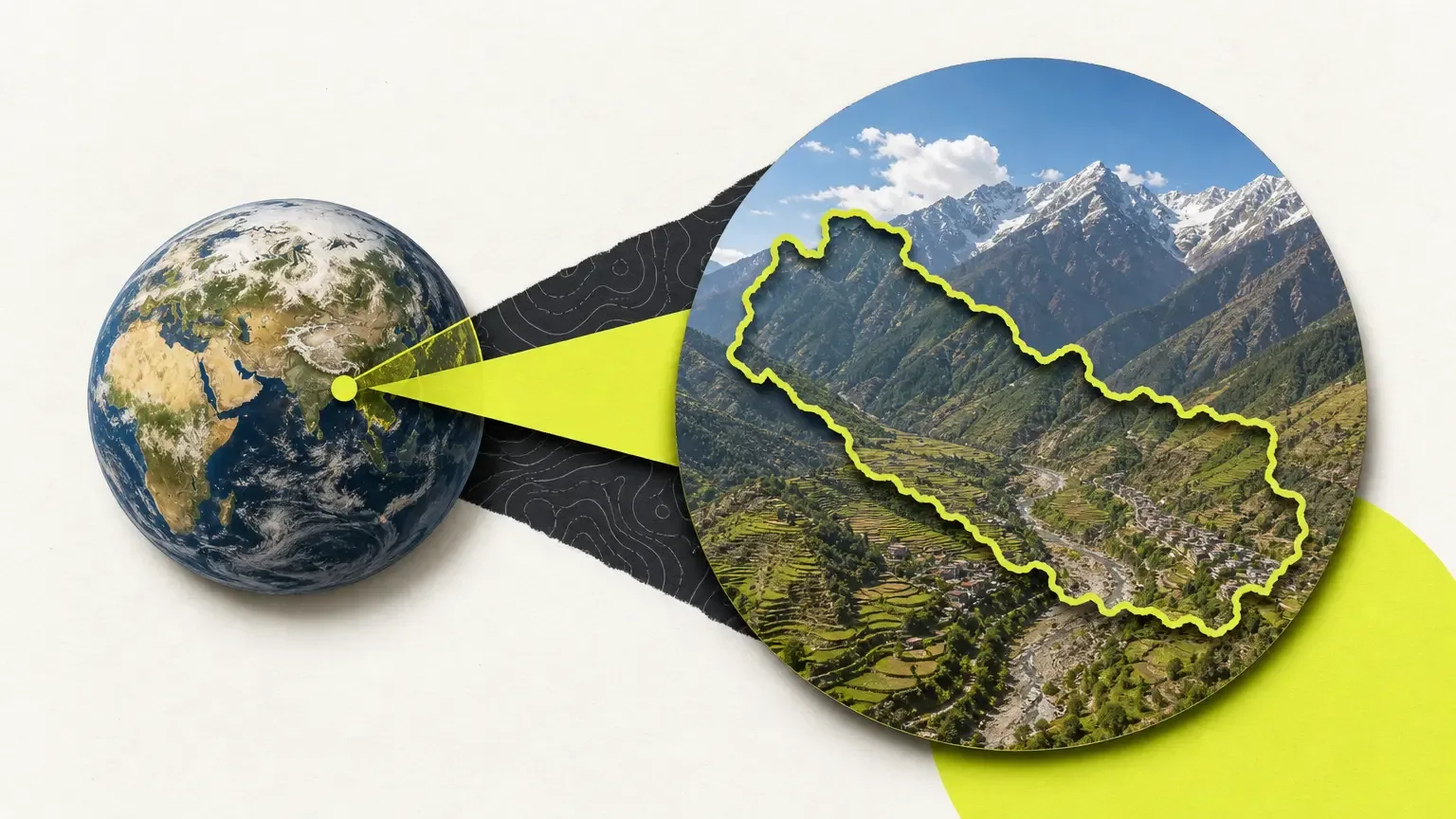
A map animation maker is an app or program that turns a still map into a short video: a country lights up, the camera pushes in, a label appears. If you are searching for one, you have probably noticed how different the results look. Some are desktop editors, some run in a browser, some only draw a route line.
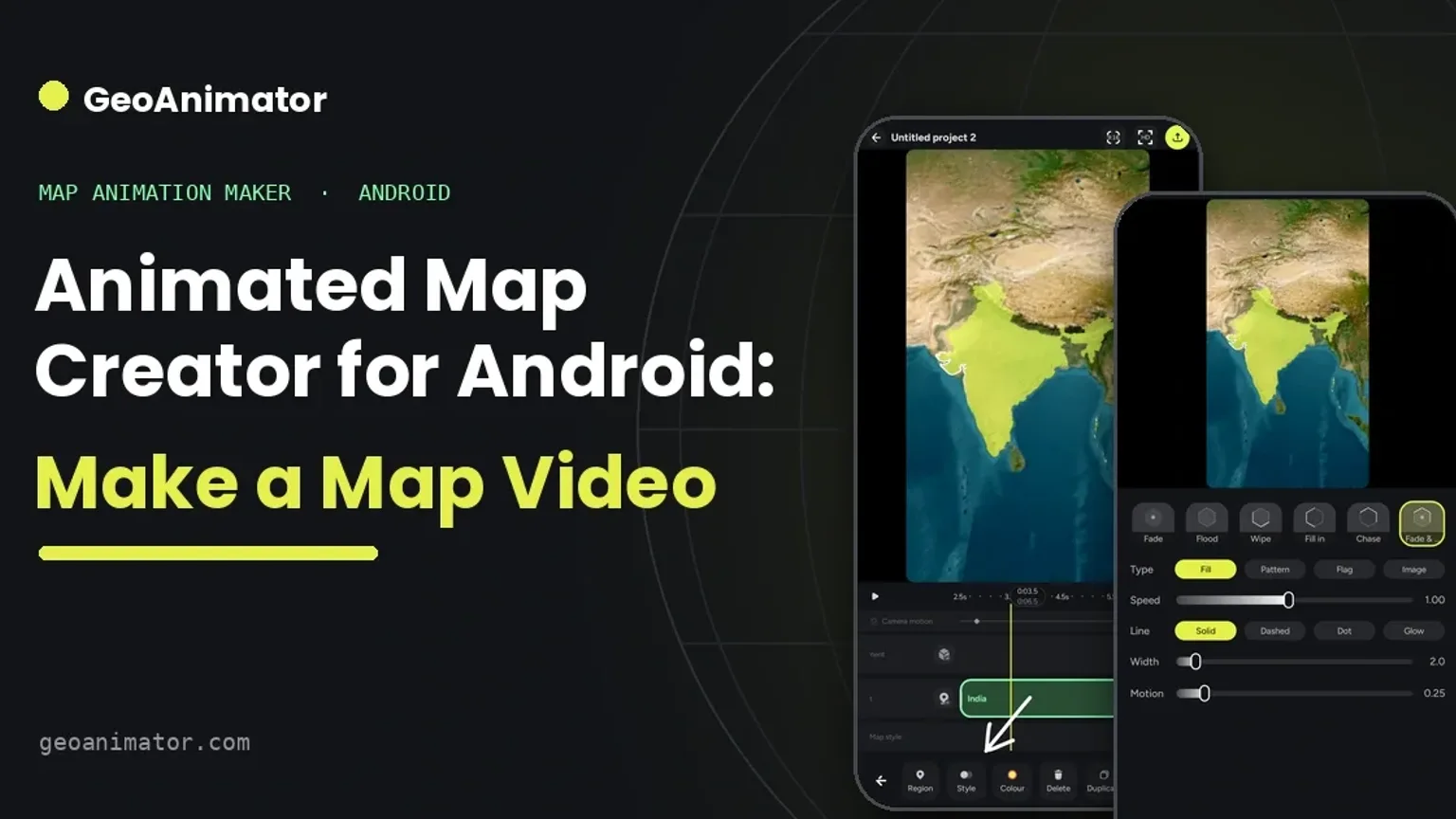
This guide sorts them out and then shows the Android route in detail. GeoAnimator is a map animation maker for Android phones, and the steps below use its real controls. The topic is timely too: people have been searching for the Equal Earth projection and for newly redrawn world maps, and a quick animated explainer is exactly what those searches call for.
Skim or read straight through.
What is a map animation maker?
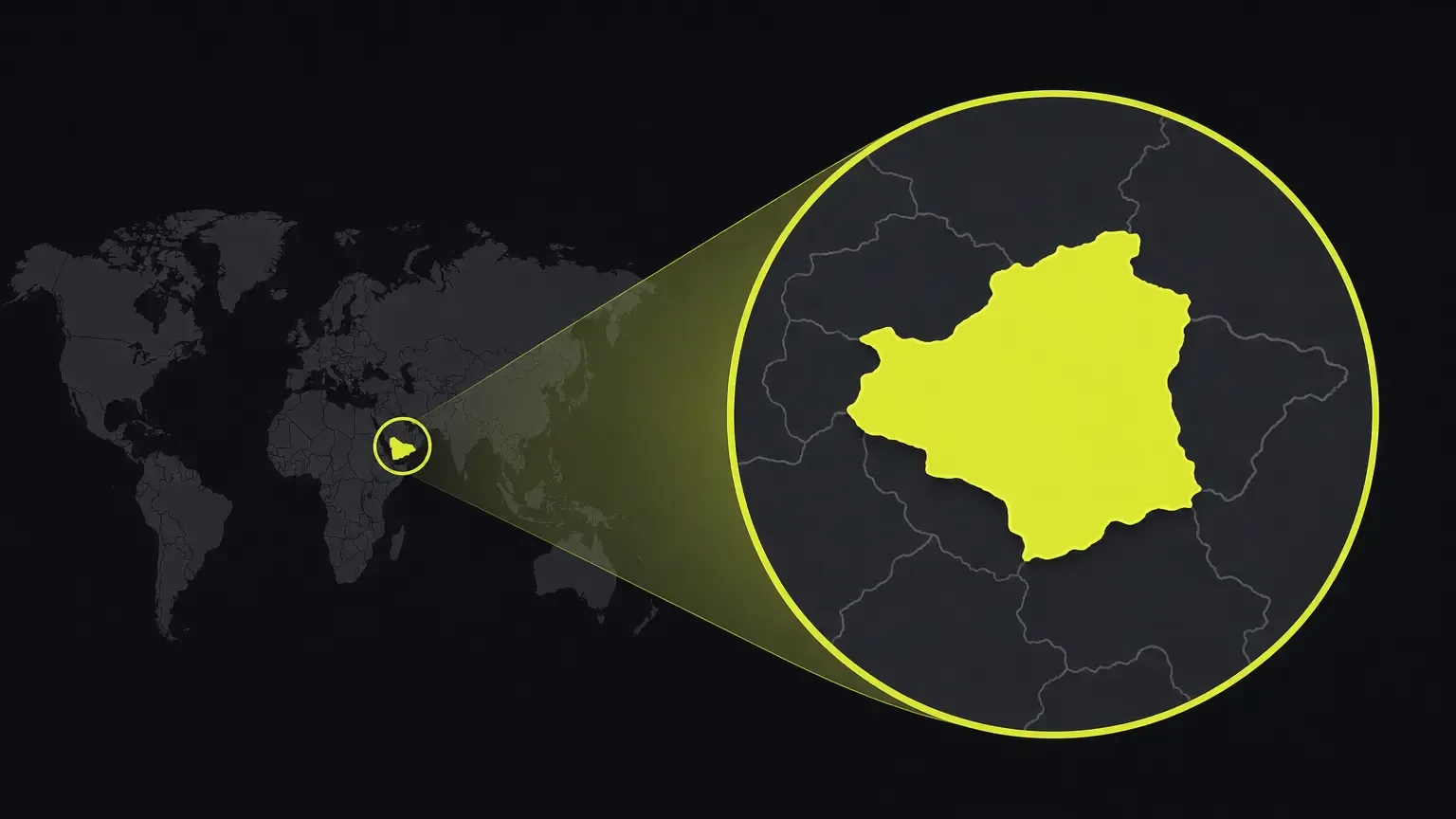
A map animation maker is software that animates geography. You pick an area, such as a country, a region or a border, choose how it appears on screen, move a virtual camera around it and export the result as a video file you can post or drop into an edit.
The output is usually a clip of 10 to 60 seconds. Teachers use them for history lessons, news explainers use them to show where something happened, and YouTube channels use them for geography stories. The common thread is that the viewer sees a place change over time instead of a static picture.
Makers differ in where the work happens. Desktop editors give fine control but take hours to learn. Browser tools are quick to start. A phone app lets you build the clip in the same place you will post it.
How do you choose a map animation maker?
Pick a map animation maker by the job you need done. Check whether it can highlight countries and regions, move the camera with keyframes, add text, and export in the aspect ratio of your platform. Then check the platform it runs on, because that decides how quickly you can actually start.
Four checks cover most of it.
Can it highlight the area you care about?
Many tools only draw lines between points. If your story is about a country, a border or a region, you need real area highlighting with a reveal effect, not a line.
Does the camera move the way you direct it?
A good clip is mostly camera work. Look for keyframes, so you can set where the camera starts, where it ends and how it travels between them.
Does it export for your platform?
Short video apps want vertical 9:16, YouTube wants 16:9, and a feed post often wants 1:1. A maker that exports all three saves you re-editing.
Where does it run?
If you film and post from your phone, an app on the phone removes a whole file transfer step. If you edit on a laptop with other footage, a desktop tool may fit better.
Which type of map animation maker fits which job?
Desktop editors suit long, polished projects, browser tools suit quick one-offs, route-video tools suit journeys, and a phone app suits country and region explainers made fast. The table compares the four types in general terms, not specific products.
| Type | Good for | Trade-off |
|---|---|---|
| Desktop video editor with map plug-ins | Long documentary-style pieces with custom graphics | Steep learning curve and a lot of manual keyframing |
| Browser-based map tool | Fast previews and simple outputs | Depends on a connection, and fine camera control is often limited |
| Route and journey video tools | Trips, flights and drives drawn as a moving line | Built around paths, so country highlighting is secondary |
| Android app such as GeoAnimator | Country and region reveals, camera moves, vertical video | Android only, so no iPhone version exists |
If your project is a route, the sister app TravelAnimator is built for that, and our guide to a travel map animation covers it. This post stays on countries, regions and camera moves.
How do you make a map animation on Android with GeoAnimator?
To make a map animation on Android, install GeoAnimator, search for your country, highlight it, set a reveal effect, add camera keyframes, place text on the timeline and export in 16:9, 9:16 or 1:1. A first clip usually comes together in a single sitting.
Here is the full sequence. The longer walkthrough lives in our guide to making a map animation on Android.
Install GeoAnimator from Google Play and start a new project.
Search for the country or region you want and select it on the map.
Highlight it with a fill colour so it separates from its neighbours.
Pick a reveal effect: Fade, Flood, Wipe or Chase. Flood suits a spreading story, Wipe suits a clean directional entrance.
Open the camera track and add a first keyframe wide enough to show the surrounding area.
Add a second keyframe zoomed on your subject, and choose a transition such as Orbit, Arc or Bounce.
Set a hold on the second keyframe. Push, Drift or Orbit holds keep the camera gently moving while the viewer reads.
Add a text layer with the name or a short caption. Pins and travel paths can go on their own layers if you need them.
Check the layered timeline, then export in 9:16 for vertical platforms, 16:9 for YouTube or 1:1 for a feed.
Pro removes the watermark and unlocks all map styles, so try the free version first and upgrade only if the clip is going somewhere public.
Worked example: animating the Equal Earth map story
Say you want a 20-second explainer on why the shape of the world map keeps coming up in the news. Equal Earth is a world map projection that keeps country sizes in proportion, and searches for it have been climbing, which makes it a fair topic for a short clip.
Plan the shot list
Start wide on the whole globe. Cut to one large country, then one small one, and let the contrast do the explaining. Three keyframes is plenty.
Build it in the app
Highlight the first country with a Wipe, add the Orbit transition to the second, and use a Push hold on the last so the camera creeps in as your caption lands. Export 9:16 and the clip is ready for a vertical feed.
Check the facts in your caption against a reliable source before you post. The animation makes a claim look polished, which is a reason to be more careful with it, not less.
What makes a map animation actually good?
A good map animation is a restrained one, where each shot reveals one area, holds long enough to read and then moves on without competing effects, so the viewer always knows where to look and what just changed.
Most weak map clips try to do too much at once, with six effects, a busy label layer and a camera that never settles. Give each shot one job: reveal the area, hold on it, then move on. Keep text short enough to read in two seconds, and leave a breath of stillness before the next move, because that pause is what lets the viewer absorb where they are and what just changed. Music matters less than people expect. A clean voiceover or a few well-timed captions carry the story, and you can add audio in whichever editor you use to finish the video.
Pick a style that suits the topic. A history lesson wants something sober. A travel teaser can be brighter.
What mistakes ruin a map animation?
The mistakes that ruin a map animation are starting too close, stacking effects, exporting in the wrong shape and skipping a fact check. All four show up again and again in beginner clips, and all four are easy to avoid once you know to look for them.
Starting too close
If the first frame is already zoomed in on a small region, the viewer has no idea where in the world they are. Open wide, let the location register, and only then move in. A two-second wide opening costs almost nothing and makes the rest of the clip make sense to people who are weak on geography, which is most viewers on most topics.
Stacking effects
One reveal, one camera move, one caption. That is a complete shot. When a clip runs three reveal styles and two camera transitions in ten seconds, it reads as a demo of the software instead of a piece of storytelling.
Ignoring the export shape
A 16:9 clip pushed into a vertical feed gets cropped or letterboxed. Decide the destination before you place a single keyframe, then export in 9:16, 16:9 or 1:1 to match.
Skipping a fact check
Borders are political, and names change. Verify anything on screen against a source you trust before the clip goes out, particularly for disputed areas where two audiences may expect two different lines.
Fix those four and your clips will already look more professional than most.
Is a phone really enough for this?
Yes, for most explainer clips. Everything in the steps above happens on the handset, from searching the place to exporting the file, so there is no render queue and no upload step before you can see the result.
If you later want to cut the clip into a longer video with interviews or b-roll, export it and drop it into your editor like any other footage. The Android app is the maker; the website is only a landing page for it.
Frequently asked questions
What is the best map animation maker?
The best map animation maker is the one that matches your platform and your subject. For country and region explainers on an Android phone, GeoAnimator covers highlighting, camera keyframes, text and 9:16, 16:9 or 1:1 export in one app. For long desktop projects, a video editor with plug-ins gives more control.
Whichever you try, test it with one real clip before committing time. Build a ten-second reveal of a single country, export it, and watch it on the device where your audience will see it. That one test tells you more about speed, framing and quality than any feature list will.
Is there a free map animation maker?
Several makers offer a free tier, and GeoAnimator can be tried without paying. The free version adds a watermark. Pro removes the watermark and unlocks all map styles. Pricing is shown on Google Play, so check there for the current figure.
Can I make a map animation on my phone?
Yes. GeoAnimator does the whole job on an Android phone, from picking the country and setting a reveal to adding camera moves and text and exporting the video, with no computer involved. There is no iPhone version.
What video formats can a map animation export in?
GeoAnimator exports three aspect ratios: 16:9 for YouTube and presentations, 9:16 for vertical short video, and 1:1 for square feed posts. Choose the shape before you place keyframes, because framing a wide shot for 16:9 and then cropping it to vertical usually cuts off the edges of your highlighted area.
What is the difference between a map animation maker and a travel route maker?
A map animation maker highlights areas such as countries and regions and moves a camera around them. A travel route maker draws a moving line between stops, like a flight or road trip. GeoAnimator focuses on the first; the sister app TravelAnimator focuses on routes.
You can still add pins and travel paths on a GeoAnimator layer when a story needs one.
Jaseel S is the CEO and founder of Lascade, the app studio behind SmartRuler. He leads a team of over 40 engineers, designers, and creatives dedicated to building consumer mobile applications that turn screen time into meaningful experiences. Under his leadership, Lascade has shipped more than 10 apps across travel, productivity, education, and lifestyle categories.