GEOANIMATOR JOURNAL
Animated Map Creator for Android: Make a Map Video
Looking for an animated map creator? See what to look for, then build a country-highlight map video on Android with GeoAnimator, step by step.

In this article10 sections
- 01What does an animated map creator actually do?
- 02How do you choose an animated map creator?
- 03Where you will edit
- 04Regions or routes
- 05Camera control
- 06Export shape and watermark
- 07How to make an animated map video in GeoAnimator
- 08How do you highlight a country on an animated map?
- 09How do you add a zoom effect to a map video?
- 10Frequently asked questions
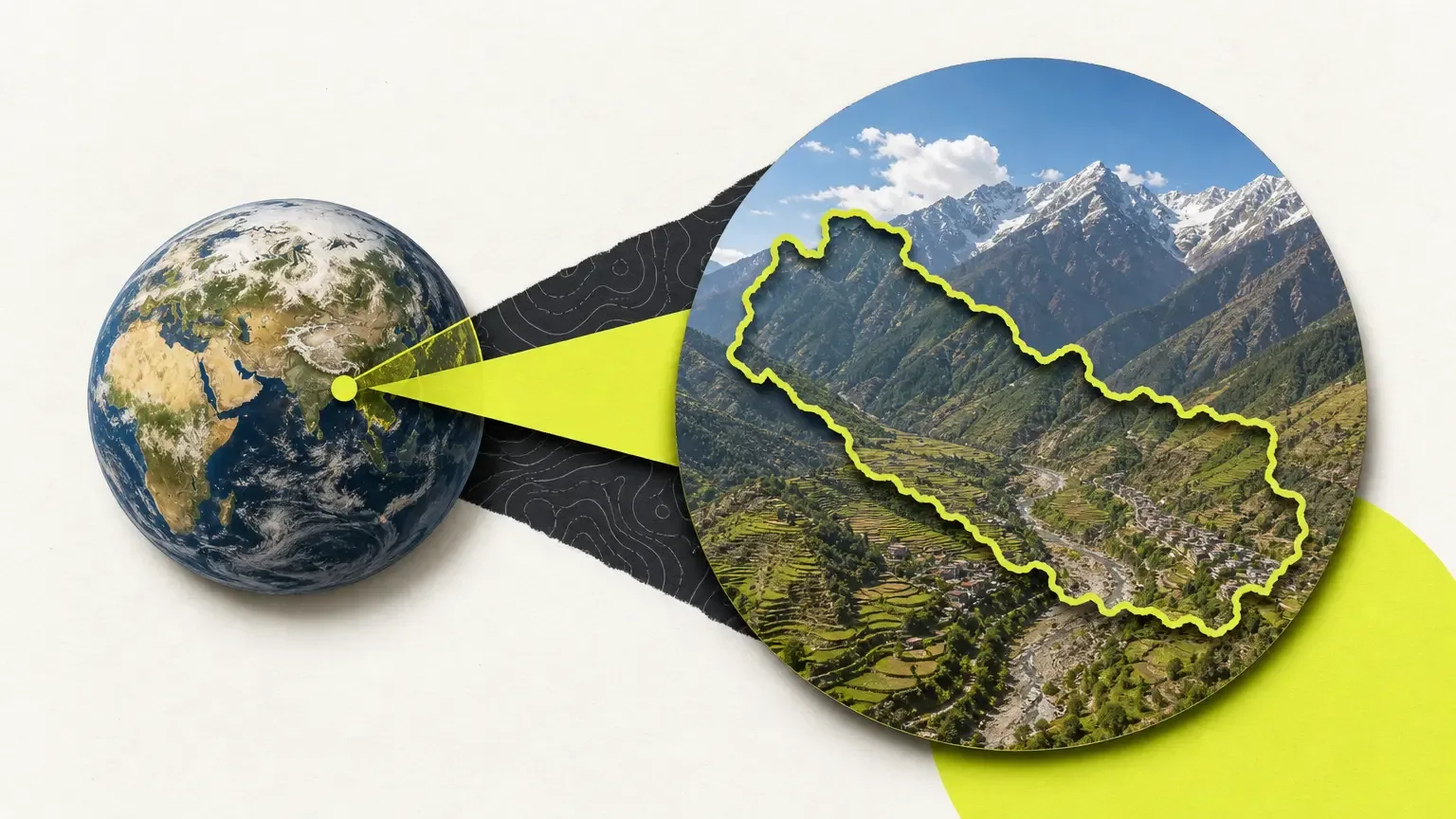
An animated map creator is an app or web tool that turns a static map into a short video: regions light up, the camera moves, labels appear on cue. Search results for the term are a mix of browser tools, desktop software and video tutorials, so picking one starts with knowing what your video actually needs.
This post covers what separates the options, then walks through building a country-highlight video in GeoAnimator, an Android editor for exactly this job.
What does an animated map creator actually do?
An animated map creator takes a base map, lets you mark places on it, and records the changes over time as a video file. You choose which countries or regions to feature, how they appear, where the camera looks, and what text sits on top. The output is an ordinary video you can post or drop into a longer edit.
Short answer: it saves you from keyframing a map by hand in a general video editor.
Most creators handle the same four jobs, and they differ in how much control you get over each one.
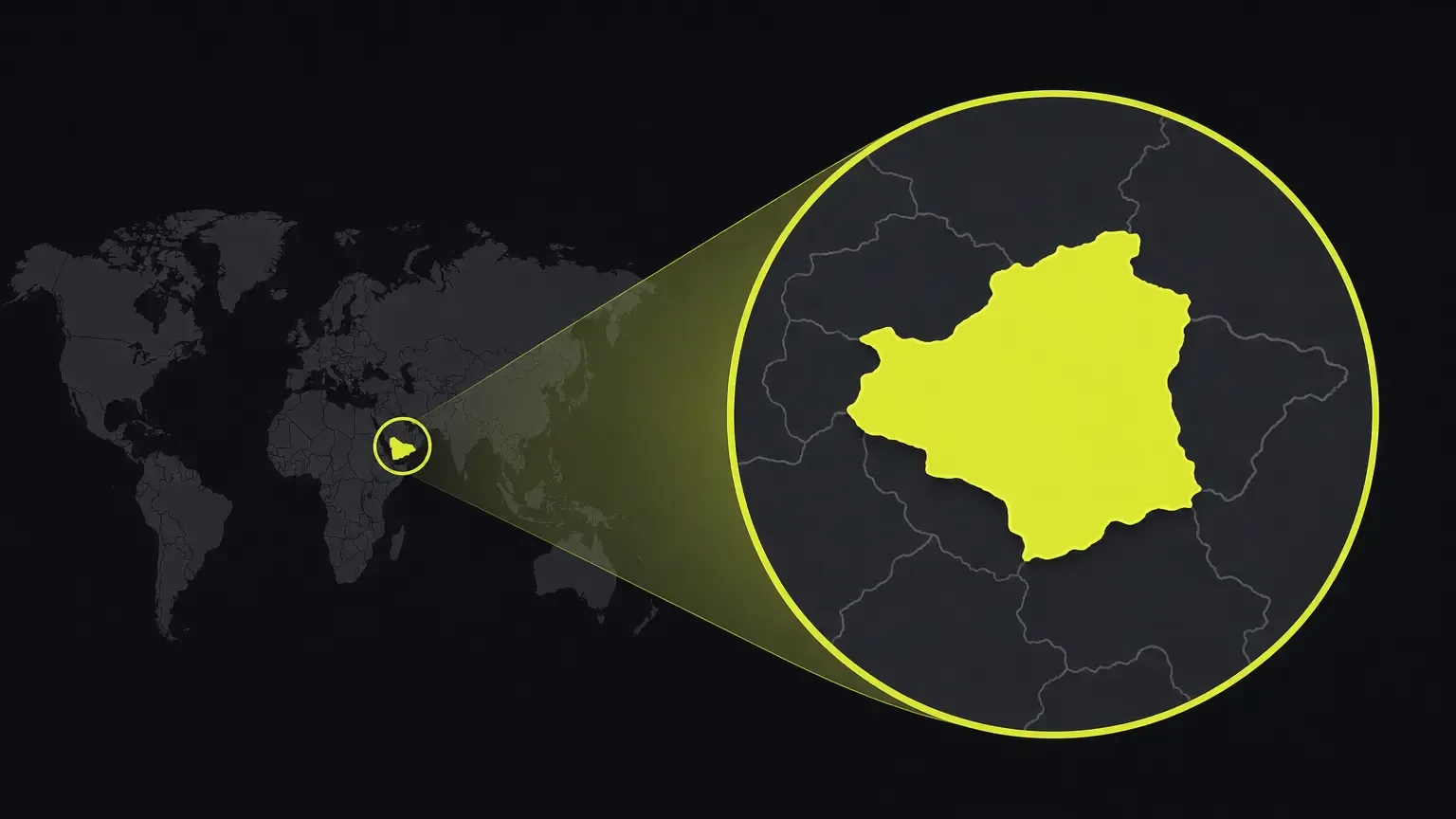
Highlighting places with a fill, border or flag
Revealing them with an animation rather than a hard cut
Moving the camera between places
Exporting at a shape that suits the platform
How do you choose an animated map creator?
Choose an animated map creator by matching it to the video you want to publish. Check where it runs, whether it highlights countries and regions or mainly routes, how much camera control it gives, what aspect ratios it exports, and what happens to the watermark. Test with one short clip before committing to a long project.
Where you will edit
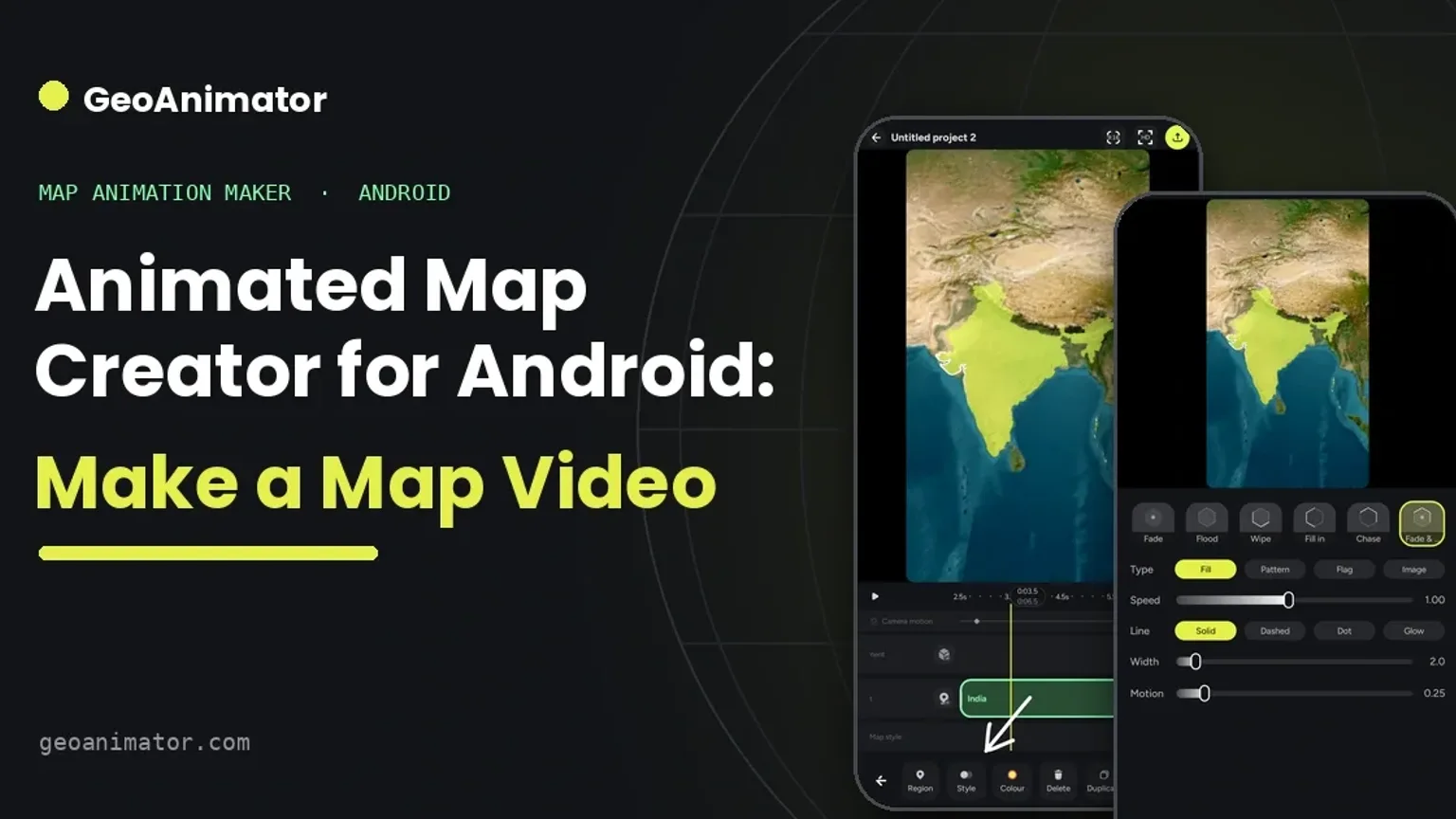
Plenty of tools run in a desktop browser. If you shoot and edit on your phone, an app that lives on the phone saves a round trip of files. GeoAnimator is an Android app, and the editor is the app itself. The website is a landing page and a demo globe, so there is nothing to open in a browser tab.
Regions or routes
Some creators are built around a line travelling from A to B. Others are built around regions: a country filling with colour, a border tracing itself, a continent coming into view. GeoAnimator handles both, but its strength is the region side, which suits geography lessons, history explainers and news recaps. If a travel route is the whole point of your video, the travel map animation guide covers that case.
Camera control
A map that only fades shapes in feels flat. Look for a tool where the camera has its own keyframes, so you can start wide and push toward one country. GeoAnimator offers Push, Drift and Orbit holds, Orbit, Arc and Bounce transitions, and pitch, zoom and rotation per keyframe.
Export shape and watermark
Check that the tool exports the shape your platform wants. GeoAnimator exports 16:9 for YouTube, 9:16 for Reels and Shorts, and 1:1 for square posts. Watermark removal and all map styles come with Pro. Plan details can change, so check the current options inside the app rather than trusting a blog post.
How to make an animated map video in GeoAnimator
To make an animated map video in GeoAnimator, start a project, search for a country, style its highlight, choose a reveal, add a label, set camera keyframes on the timeline and export the video. A single country with one label is a good first project, and it takes far less time than it sounds.
Install GeoAnimator from Google Play and open a new project, or pick a template as a starting point.
Choose your canvas. Use 16:9 for YouTube, 9:16 for Reels and Shorts, or 1:1 for a square post.
Pick a map style. Pro unlocks all of them, so start with whichever is available to you.
Use location search to find your country or state, then give it depth with Rise, Dig or Hover and set the height.
Style the highlight. Fill it with a solid colour, a pattern, a flag or an image, and set fill and border opacity separately so the outline stays readable.
Choose a reveal: Fade, Flood, Wipe or Chase. Adjust direction, speed, intensity and softness until the entrance matches the mood.
Add a title on screen, or pin a text label to the place itself.
Open the timeline. Add camera keyframes with a Push, Drift or Orbit hold, and pick an Orbit, Arc or Bounce transition between them.
Preview the whole sequence, check spelling and contrast, then export. Watch the export progress before you leave the screen.
The step-by-step guide to making a map animation on Android goes deeper on pacing and label placement.
How do you highlight a country on an animated map?
To highlight a country on an animated map, search for it by name, apply a fill, pattern, flag or image, set a border colour, and choose a reveal such as Fade or Flood. Keep one strong colour for the subject and let everything around it stay quiet, so viewers know where to look.
Depth helps too. Rise lifts the region off the map, Dig sinks it, and Hover floats it, each with an adjustable height. A raised country reads instantly on a small phone screen, which matters because most viewers will not see your video larger than that.
If the video makes a claim about history or statistics, check it against a reliable source. A shape on a map does not prove a border existed on a particular date.
How do you add a zoom effect to a map video?
To add a zoom effect to a map video, set camera keyframes on the timeline. Place one keyframe with a wide view, a second closer to your subject, and use zoom, pitch and rotation to control the move. A Push hold slowly drives the camera forward while the clip plays.
Patience matters here.
Leave a beat after the camera settles so the label can be read. Moving the camera and introducing three labels in the same second leaves the viewer catching up with all of it.
What makes a map video worth watching?
A map video works when it has one question and answers it. Where is this country? What did its borders cover? Which regions are part of the story? Decide that first, then let each highlight and camera move serve it.
Keep clips short. A fifteen second vertical video with one highlight and one label will often outperform a minute of constant motion. Preview on a phone.
When you are ready to build one, GeoAnimator is on Google Play.
Frequently asked questions
What is the best animated map creator for Android?
The best animated map creator for Android is one that edits on the phone itself. GeoAnimator is an Android app that highlights countries and regions, reveals them with Fade, Flood, Wipe or Chase, moves the camera with keyframes and exports 16:9, 9:16 or 1:1 video.
Which suits you depends on whether your video is region-led or route-led. Travel stories lean on paths, while geography lessons and news recaps lean on highlighted regions and borders, so decide that before you download anything.
Is there a free animated map creator?
Several animated map creators offer a free tier, usually with a watermark or limited styles. GeoAnimator lets you build and preview a project, and Pro removes the watermark and unlocks all map styles. Pricing is not listed on the website, so check the in-app plan details.
Can I make an animated map on my phone?
Yes, if your phone runs Android. GeoAnimator is an Android app, so the whole workflow happens on the device: search a country, style it, add text, set the camera and export. There is no iPhone version.
What aspect ratio should an animated map video be?
Use 16:9 for YouTube and presentations, 9:16 for Reels, Shorts and TikTok, and 1:1 for square social posts. GeoAnimator exports all three, so pick the shape before you start composing.
Can I animate a travel route as well?
Yes. GeoAnimator has a Travel / Path track on its timeline, separate from region highlights, so you can show a journey alongside the places it passes through. The travel map animation guide walks through it.
Jaseel S is the CEO and founder of Lascade, the app studio behind SmartRuler. He leads a team of over 40 engineers, designers, and creatives dedicated to building consumer mobile applications that turn screen time into meaningful experiences. Under his leadership, Lascade has shipped more than 10 apps across travel, productivity, education, and lifestyle categories.