GEOANIMATOR JOURNAL
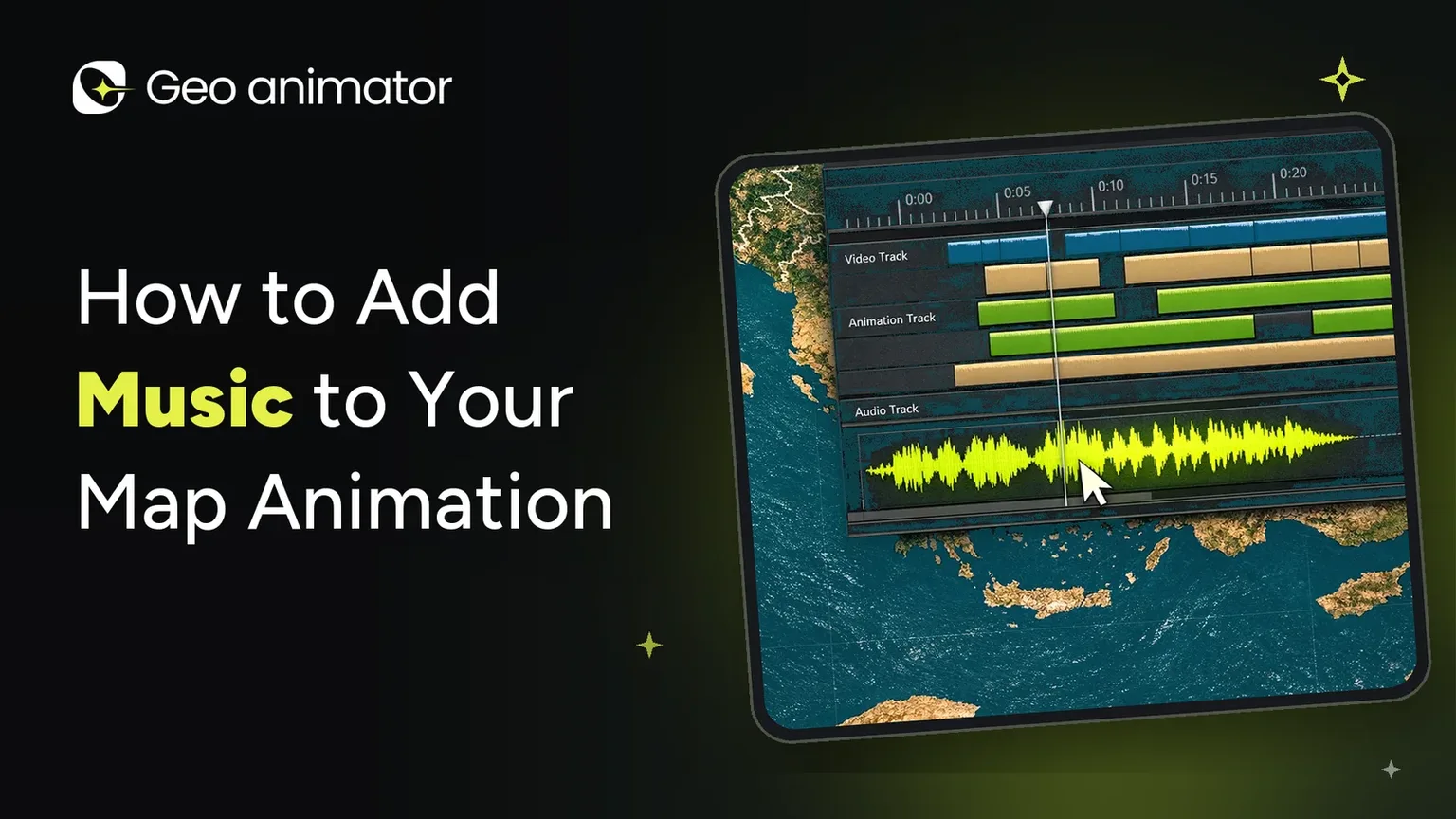
How to Add Music to Your Map Animation
Learn how to add music to your map animation: build the visuals in GeoAnimator, export, then sync royalty-free music in an Android video editor.

In this article8 sections
Play a map animation with no sound and it feels like a slideshow. Add the right track and the same clip suddenly has a pulse: the country lights up on a beat, the camera glide feels like a film shot, and viewers stay for the whole thing.
f you have been wondering how to add music to your map animation, this guide walks you through the full workflow. We build the visuals in GeoAnimator, export the video, and then layer in music so everything lands exactly where it should. You will also learn how to pick a track, avoid copyright trouble, balance music against a voiceover, and keep your audio sharp on YouTube, Shorts, Reels and TikTok.
A quick note before we start: GeoAnimator is built around the map side of the story, meaning country highlights, camera moves, text and timeline control. Music is added at the editing stage, on top of your exported clip. That is how most map creators work anyway, and it gives you far more choice over sound than a single built-in library would.
Why music matters in a map animation
A map clip is a visual explanation. Music turns it into an experience. Here is what a good soundtrack actually does:
Sets the mood instantly. A calm ambient bed says documentary. An upbeat track says travel vlog. A tense, cinematic pulse says breaking news or history.
Hides rough edges. Silence exposes every awkward pause. Music smooths the gaps between reveals and text.
Guides attention. When a beat drops as a country fills with colour, the viewer's eye goes exactly where you want it.
Boosts retention. On short-form platforms, a clip with rhythm tends to feel more finished and more watchable than a silent one.
In short, if your visuals are the what, your music is the feeling.
Build and finish your map animation first
The biggest mistake people make is hunting for a song before the visuals exist. Lock the picture first, then choose the audio. That way you know the exact duration and the key moments you want to hit.
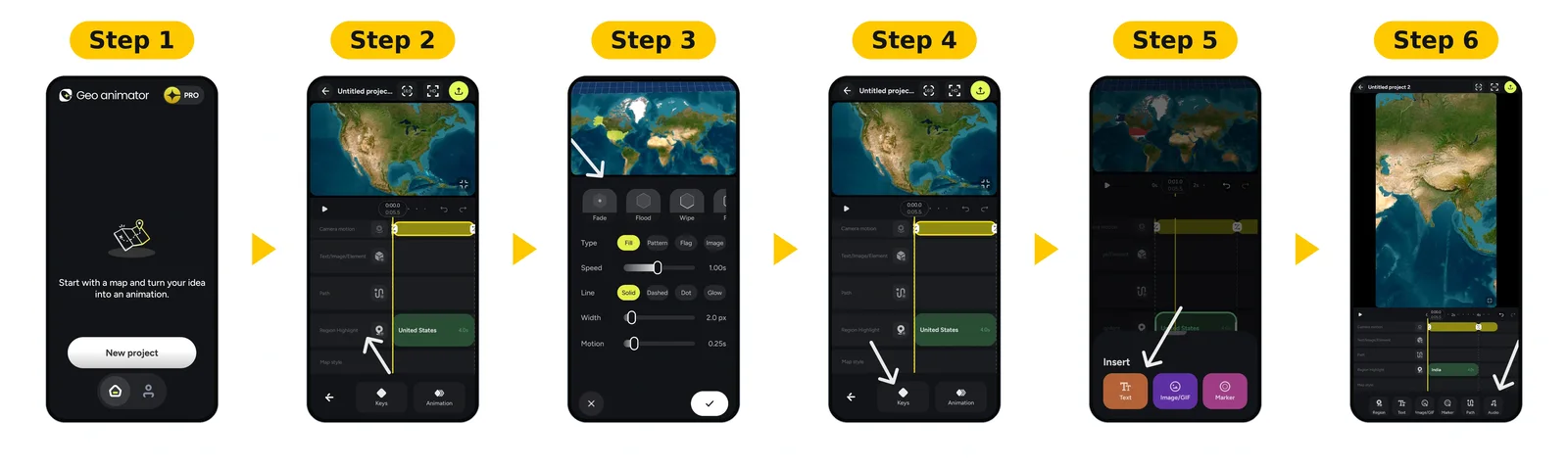
If you are starting from zero, here is the quick version of the process in GeoAnimator:
Install the app from Google Play and start a new project .
Search for your country or region and style its fill with a solid colour, pattern, flag or image.
Choose a reveal such as Fade, Flood, Wipe or Chase.
Add camera keyframes for zoom, pitch and rotation, and pick a transition like Orbit, Arc or Bounce.
Drop in text, labels or images, and arrange everything on the layered timeline.
Tap Audio in the bottom toolbar and add audio
Tap the play button at the left of the timeline to preview your animation with the music.
Want the full walkthrough with every control explained? Read our guide on how to make a map animation, or follow the Map Animations for Video tutorial for a complete Nepal example. If your clip starts wide and pushes into one country, the map zoom effect tutorial shows exactly how to set those keyframes.
Export your finished map video
When you are happy with the preview, export from GeoAnimator. At the top of the editor you will find the aspect-ratio button (it shows 9:16 in our project), the HD button, and the yellow export button on the right. Pick your aspect ratio before you export, because the framing changes between formats:
16:9 landscape for YouTube, presentations and embedded video
9:16 vertical for Shorts, Reels and TikTok
1:1 square for feed posts
Pro removes the watermark and unlocks all map styles. Plans change, so check the current details on the Google Play listing or in the app.
Want to polish it further? You can still bring the exported clip into any video editor for extra effects. Our map animation maker guide explains how a map segment fits into a longer video.
Sync the music to your map moves
This is the step that makes viewers say "that looks professional." Good sync does not need fancy software. It just needs a bit of planning.
Line up reveals with beats
Take the timestamps you noted in Step 1. Now find the beats or musical changes in your track and shift the audio so they land together:
Country reveal on a downbeat. A Flood or Wipe reveal that begins right on a strong beat feels satisfying and deliberate.
Camera push on a build-up. If the track has a rising section, start your zoom-in as it begins to build, and arrive at the destination when it peaks.
Text pop on a small accent. Labels feel snappier when they appear on a light hit rather than in the middle of a long note.
Common mistakes to avoid
Picking music before the visuals are done. You end up cutting the map to fit the song, which rarely works.
Using tracks with lyrics under narration. Words compete with words.
Ignoring copyright. One claim can mute or block your whole video.
Letting the track run too long. Cut it with the picture so the ending feels intentional.
Mixing too loud. If viewers have to reach for the volume button, you have lost them.
Skipping the phone-speaker test. What sounds balanced on headphones can be muddy on a small speaker.
Using the same track for everything. A little variety keeps a series of map videos fresh.
Ideas for music in different map video styles
Country spotlight: Start with a quiet intro, hit a soft beat as the country fills in, then let a gentle melody carry the facts. See how a highlight is built in our country highlight map tutorial.
Flags and comparisons: Upbeat, rhythmic tracks make a sequence of flag fills feel like a countdown. Our guide to highlighting countries with flags shows how to set that up.
Travel routes: Warm, acoustic or world-inspired music suits a journey. For route-based clips, see the travel map animation guide.
Regional maps: A steady, neutral beat works well for something like an animated map of the United States, where many states may appear in sequence.
Cinematic intros: Orchestral swells pair beautifully with a world-to-country zoom and an Orbit transition.
Final thoughts
Adding music to a map animation is one of the simplest ways to make it feel finished. Build the visuals first, choose licensed music that matches the mood, line up your reveals and camera moves with the beat, and keep the mix balanced so your message still comes through.
Ready to try it? Download GeoAnimator on Google Play, create your first map animation, and give it the soundtrack it deserves. For more ideas, browse the GeoAnimator Journal, or see how the pieces fit together in the How it works section.
Frequently asked questions
Is GeoAnimator free?
You can download it from Google Play and start building. Pro unlocks all map styles and removes the watermark, so check the current plans in the app before you decide. If you are comparing tools, our AnimateMyMap alternative post and the animated map creator guide can help
Does GeoAnimator have a built-in music library?
GeoAnimator focuses on the map visuals: highlights, camera moves, text, images and the timeline. Its listed features do not include a music library, so the recommended workflow is to export your clip and add music in an editor. Feature lists can change, so check the app and the GeoAnimator homepage for the latest details.
Should I add music before or after exporting from the map app?
After. Finish and export your animation first so you know the exact length and key moments, then add and sync the music in your editor.